Bring your own key
Instead of a Claude or ChatGPT subscription routed through a connector — which usually costs a monthly or yearly fee and comes with one overall token limit — you can use a pay-as-you-go API key from the provider you prefer. You top it up with whatever amount suits you, and you can see what each request costs.
It is very simple: once you have chosen a provider, all you have to do is register a key and copy it into Typetoe.
And if you are undecided and would rather not use a provider or a connector at all, no need to worry: Typetoe gives you a free trial model, with a budget of 200,000 tokens included. It does not expire — it gets used up. Enough to get a feel for the assistant and the scan, not enough to work with.
01
The providers we support
Typetoe supports several providers, and a list of models for each one. The whole list is updated periodically as new models reach the market.
The main providers supported at the moment are:
- OpenAIChatGPT
- AnthropicClaude
- GoogleGemini
- xAIGrok
- DeepSeek
- MoonshotKimi
- GroqLlama
To search the web from inside Typetoe you can also use a research model, from Tavily, Brave, Exa and Perplexity. Those need an API key too.
02
Which provider to choose
Every provider has its own dashboard for registering API keys, but they work much alike. Small details differ from one provider to another, and over time, but the general rule does not change much.
First, it is worth choosing a provider: as I write, Anthropic's Claude with the Opus and Fable models is perhaps the most solid one for literature. At reading subtext it currently seems to be ahead of everything else. But that can hold for one kind of use and not for others.
Some writers who are used to long brainstorming sessions, for instance, say ChatGPT is the best at it.
Gemini is often the most current on news and trends.
In short there is no single rule, and certainly no fixed one, so the advice is to make the most of Typetoe by adding keys for several models, switching between them to try each one out and to stay up to date.
03
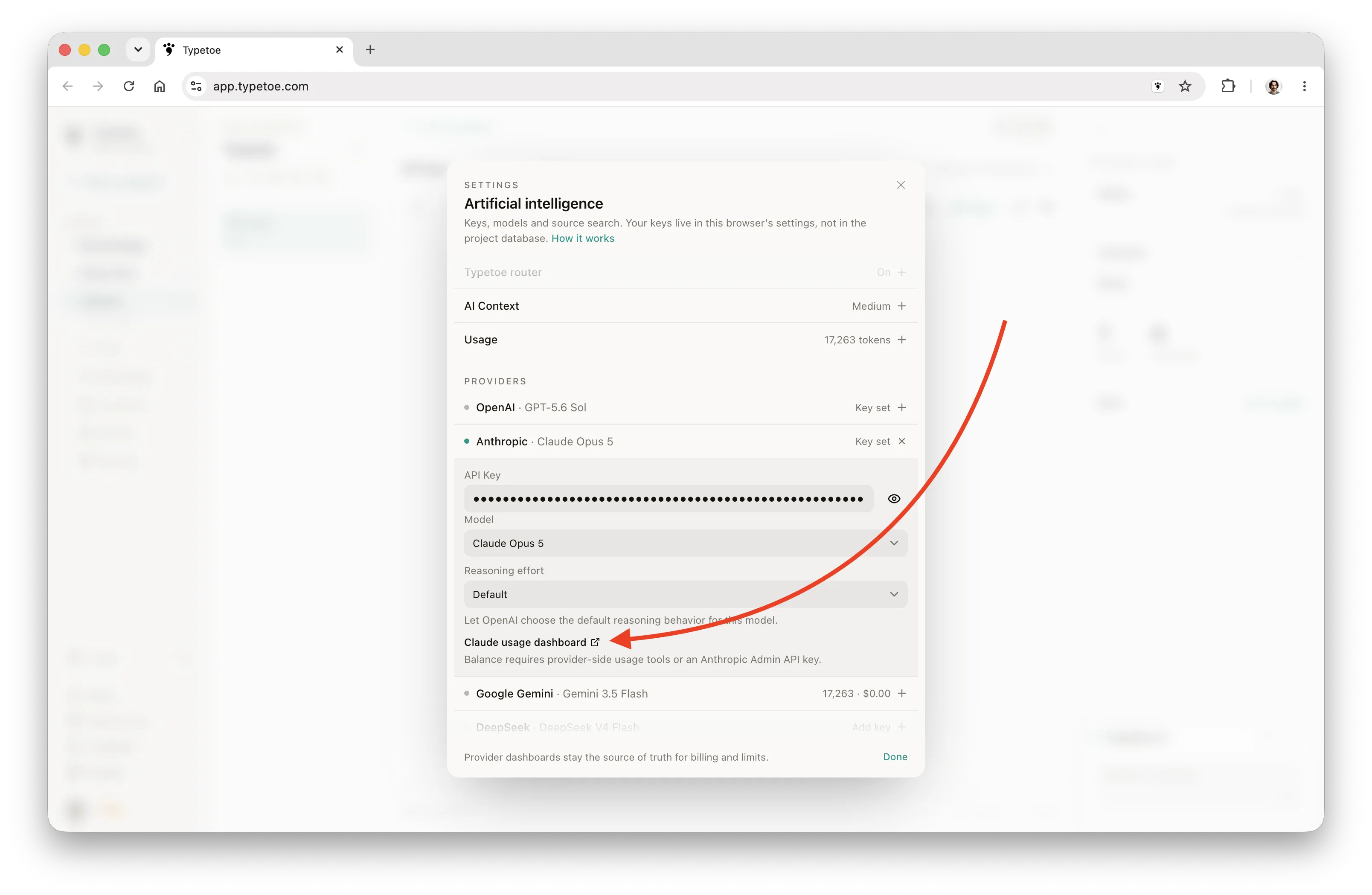
The shortcut: the dashboards from the chat
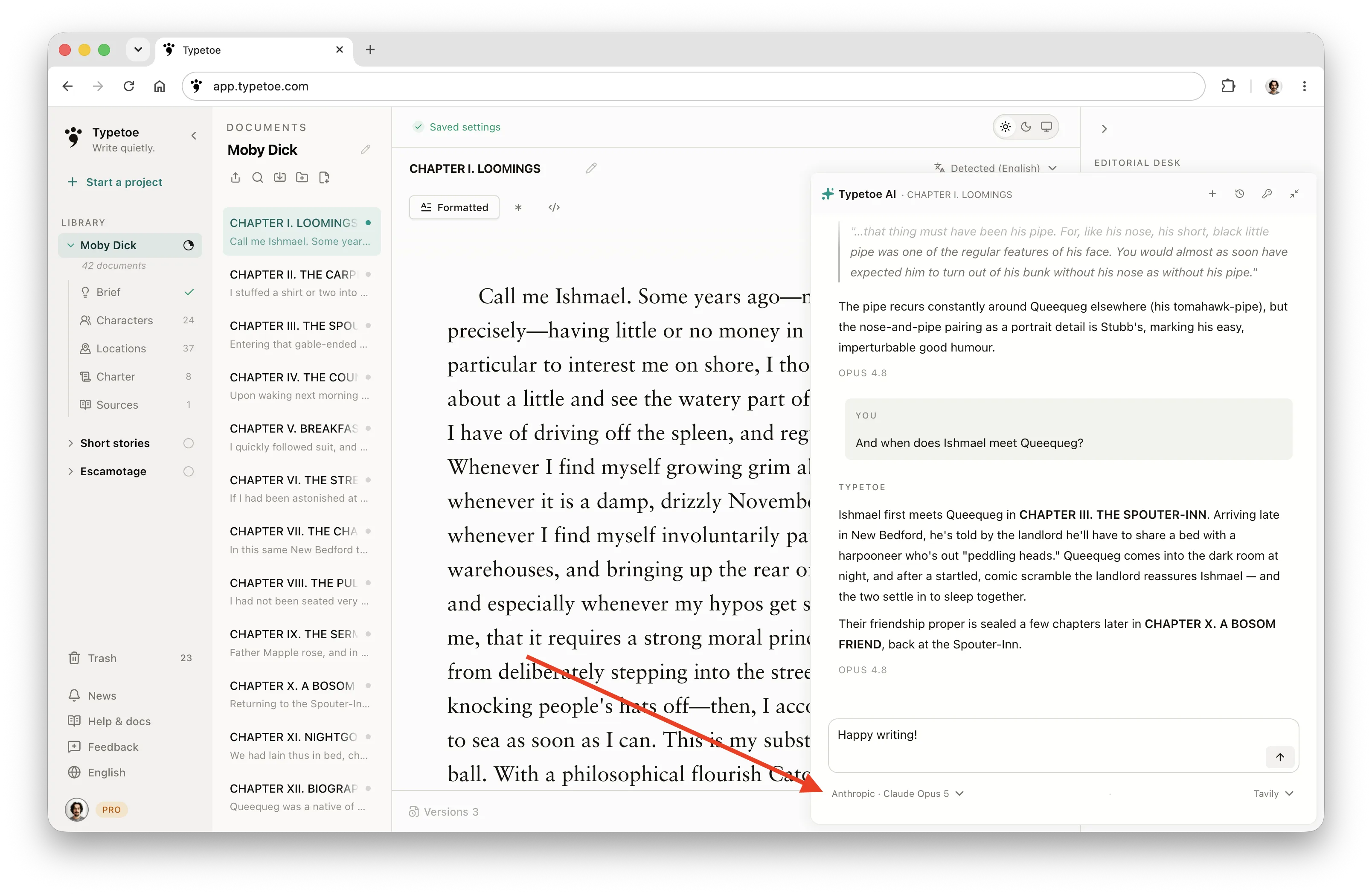
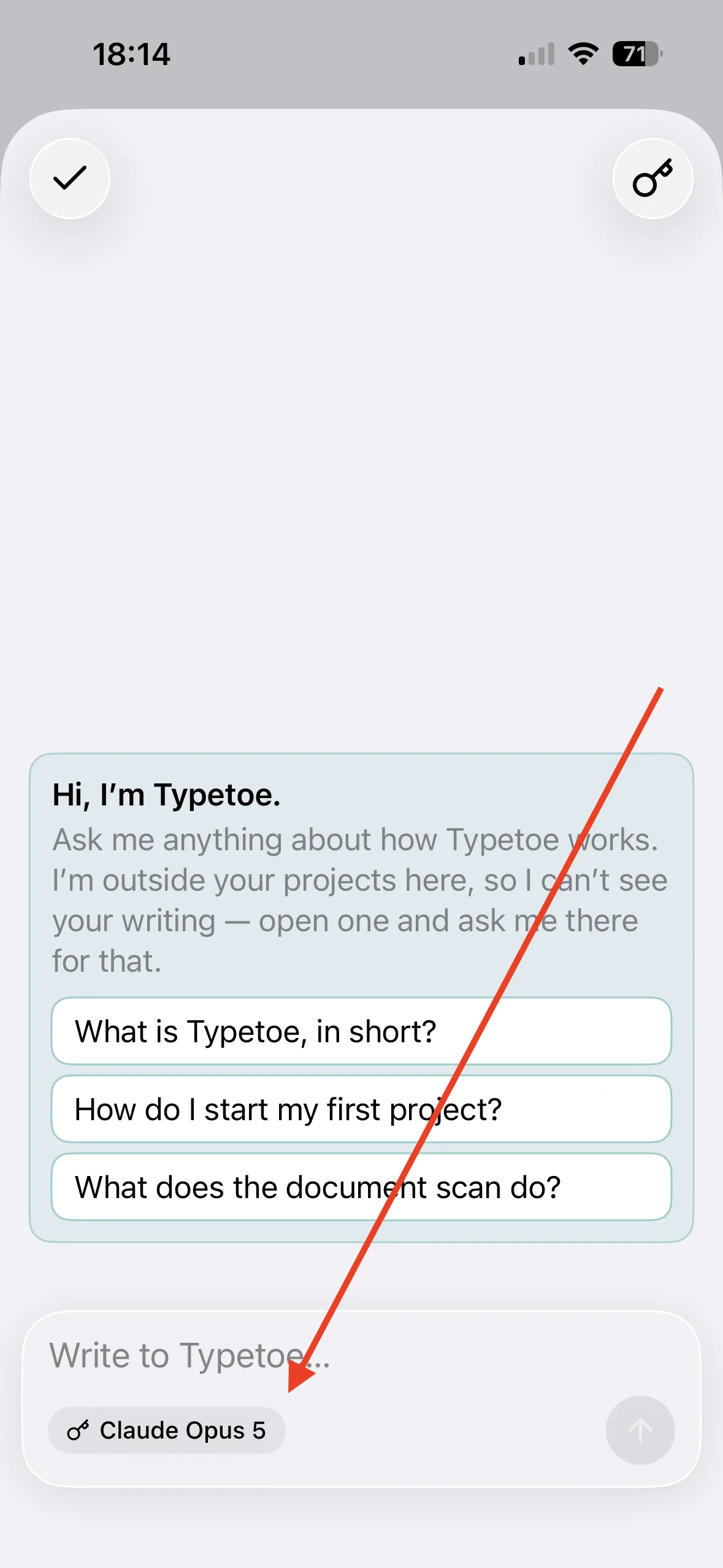
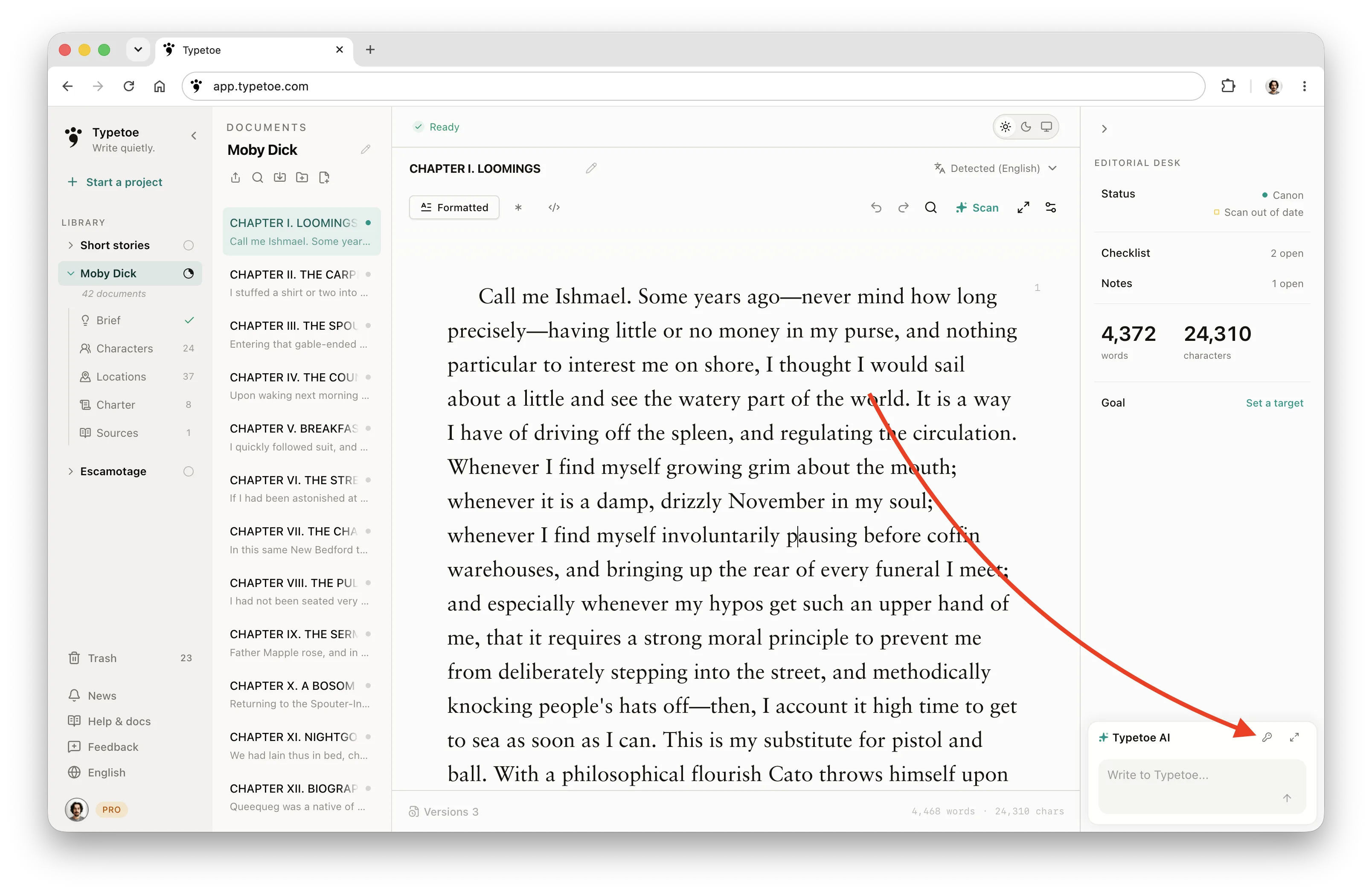
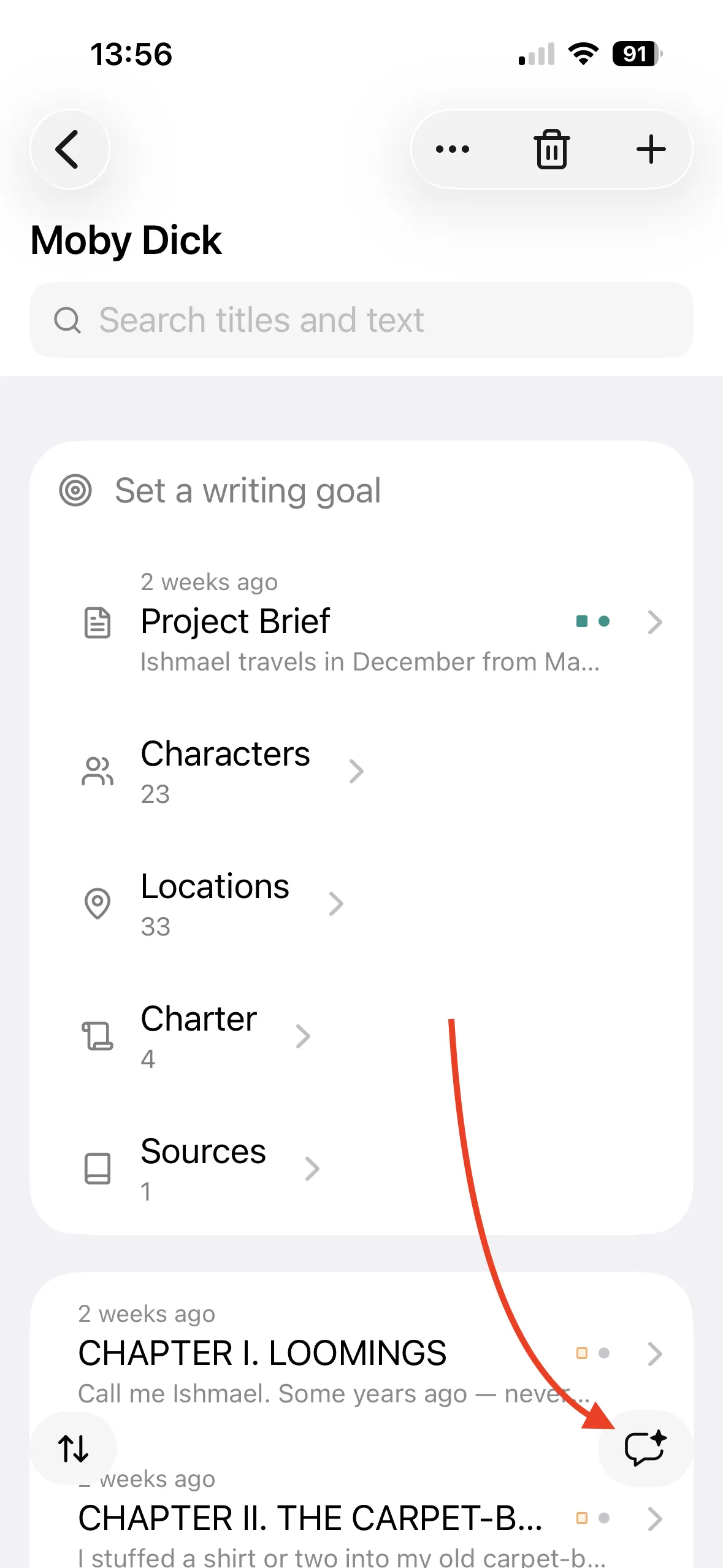
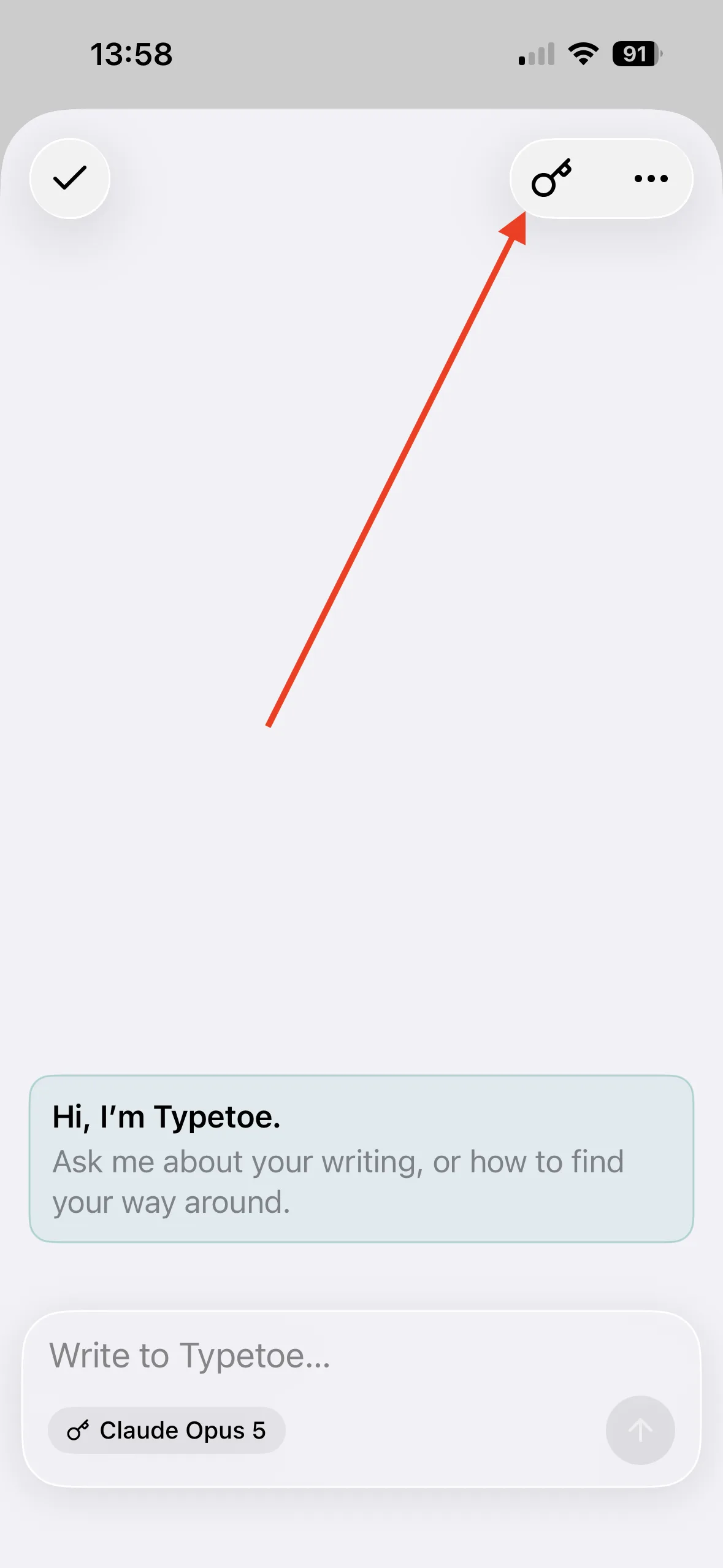
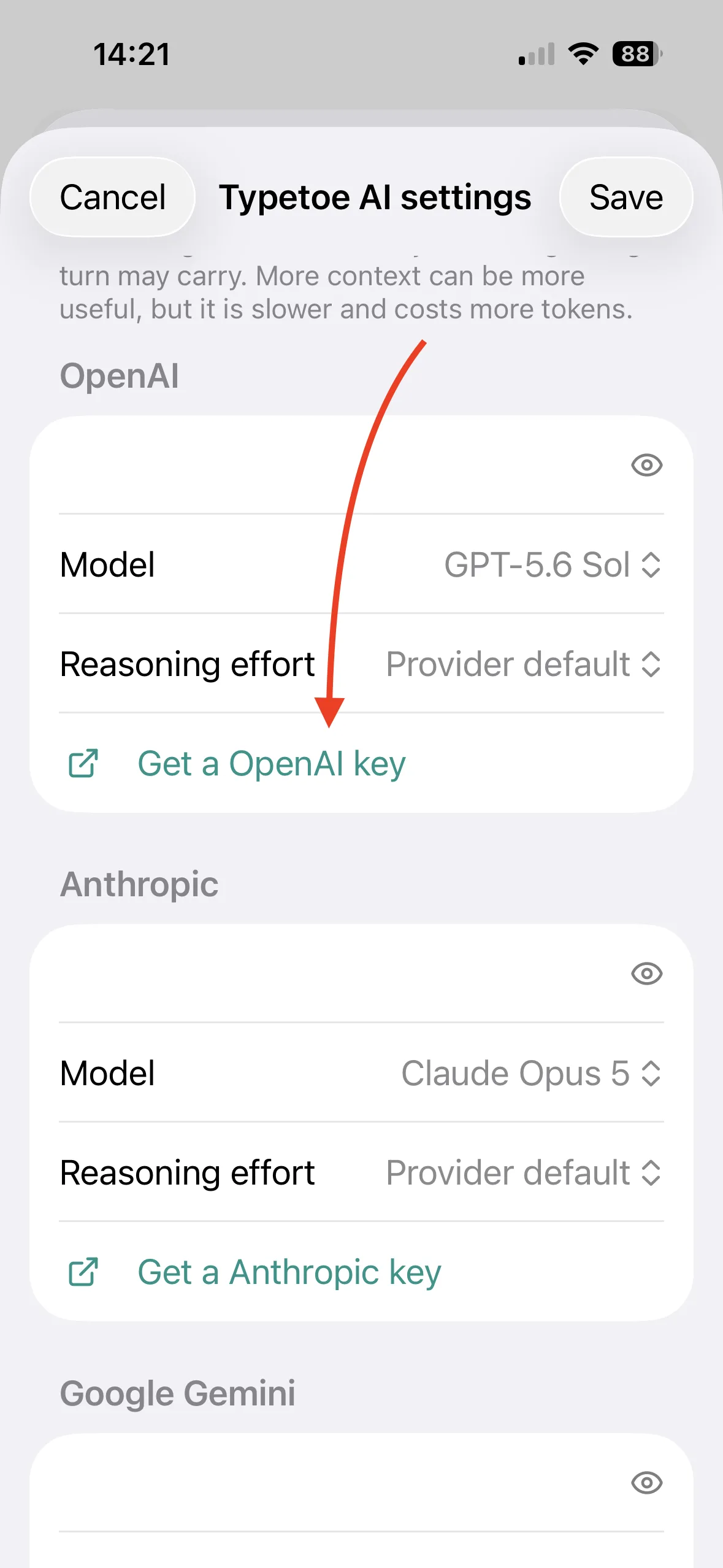
You can reach the various models' dashboards straight from the Typetoe chat.
On desktop
On iPhone
04
Creating the key
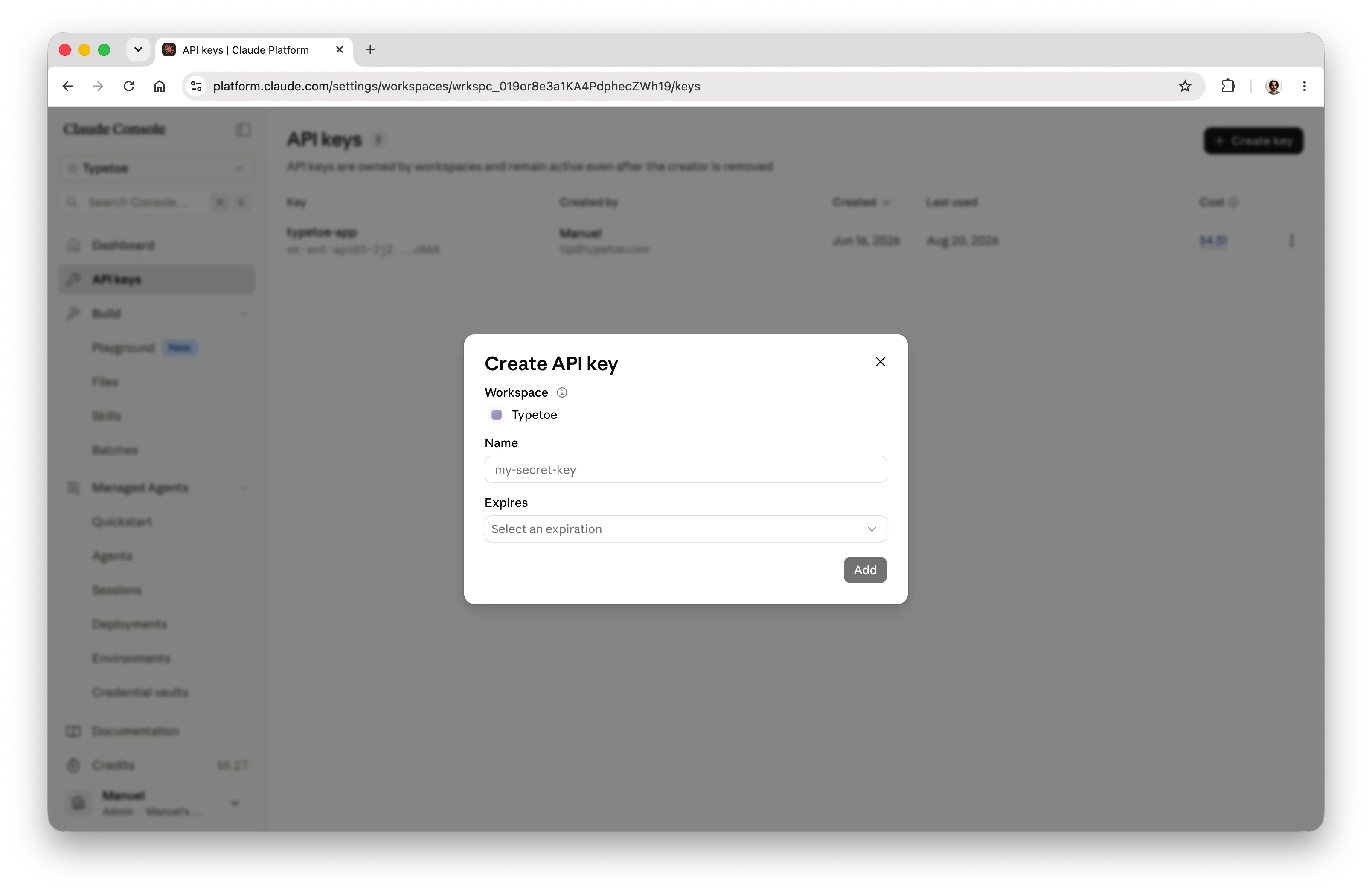
Shown here as examples are the OpenAI and Anthropic consoles, much alike each other. You reach them, of course, once you have signed in.
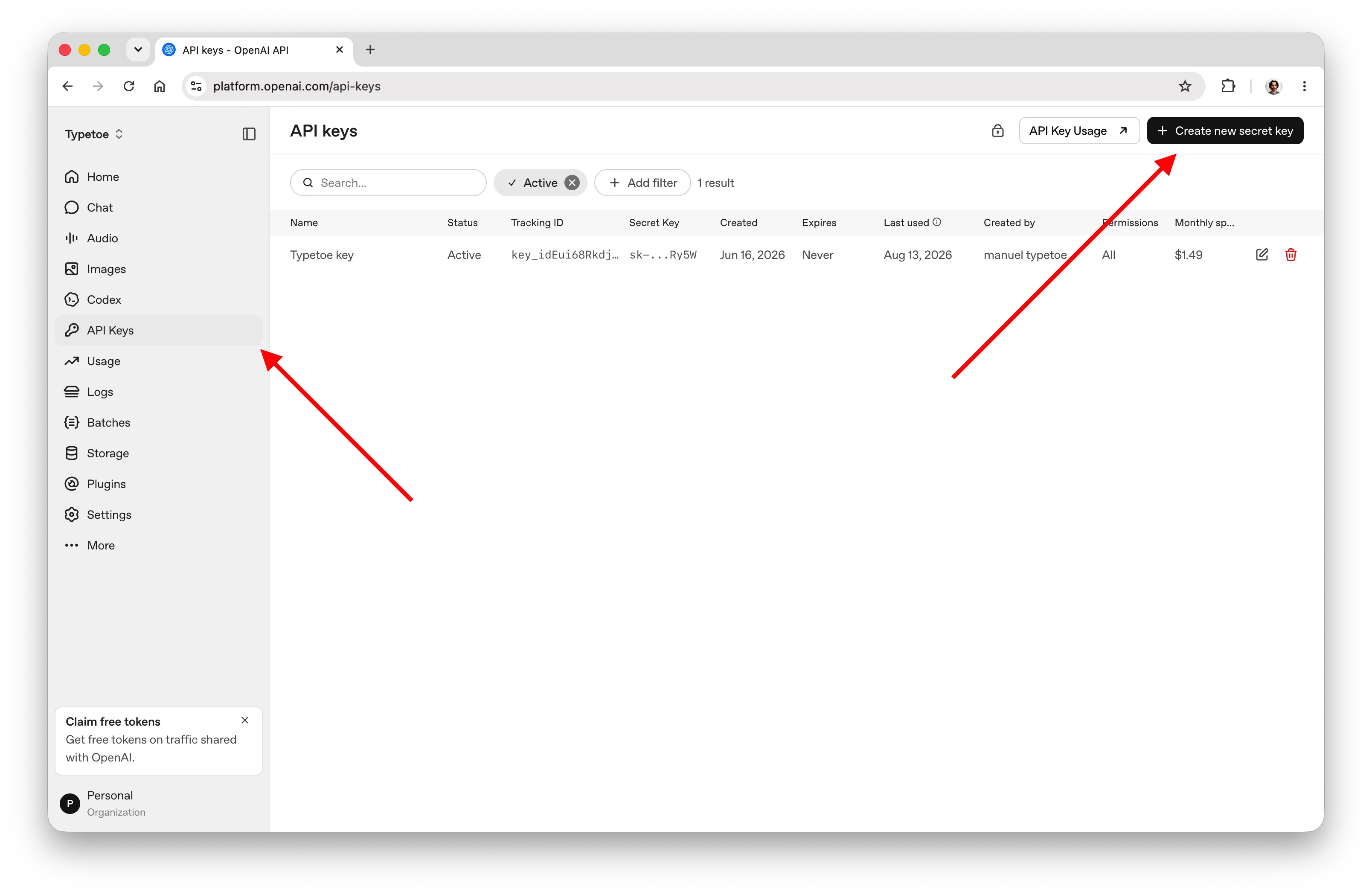
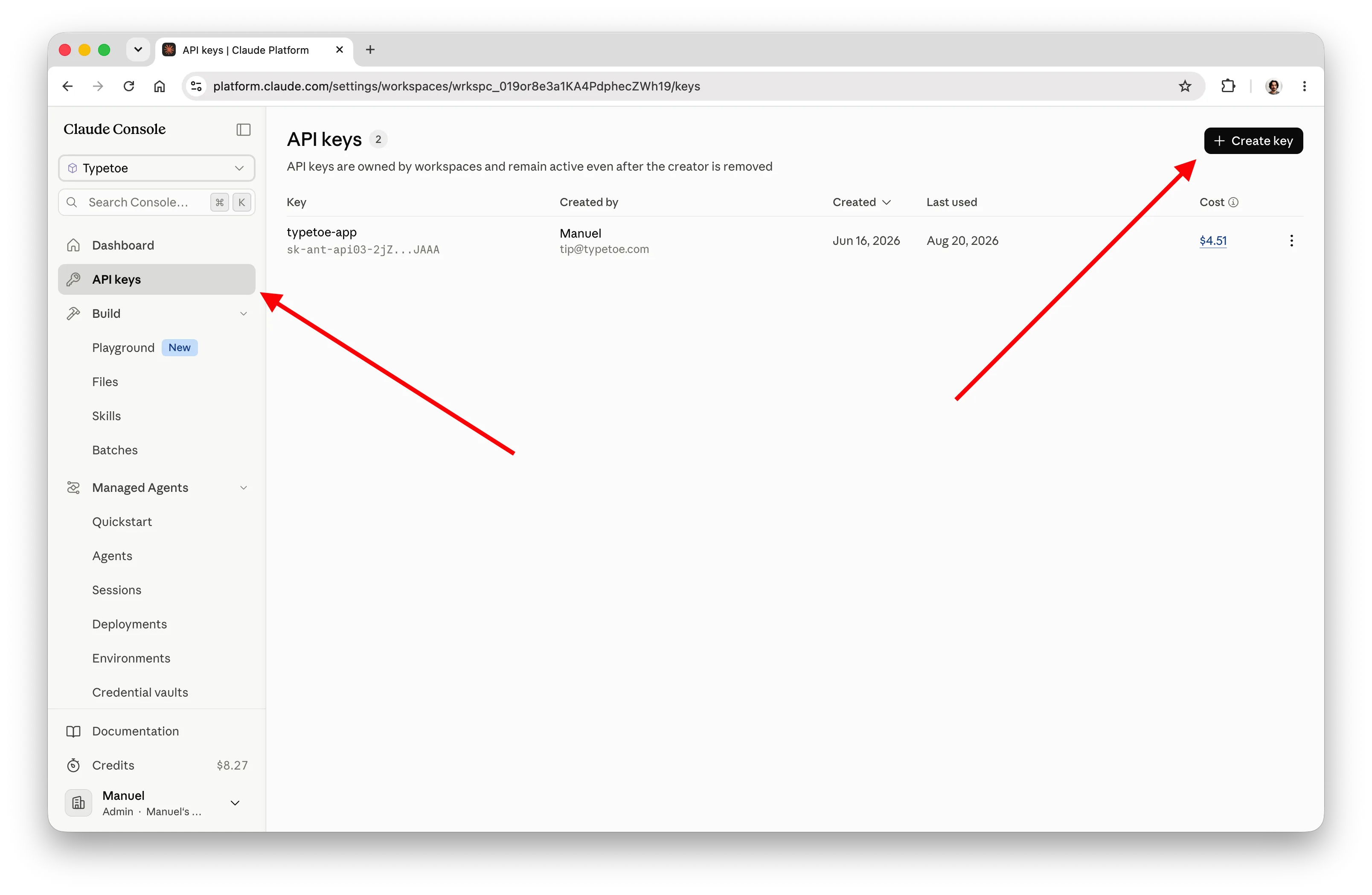
They ask you to set up a project or workspace to create your API key inside, giving it an expiry date if you prefer.
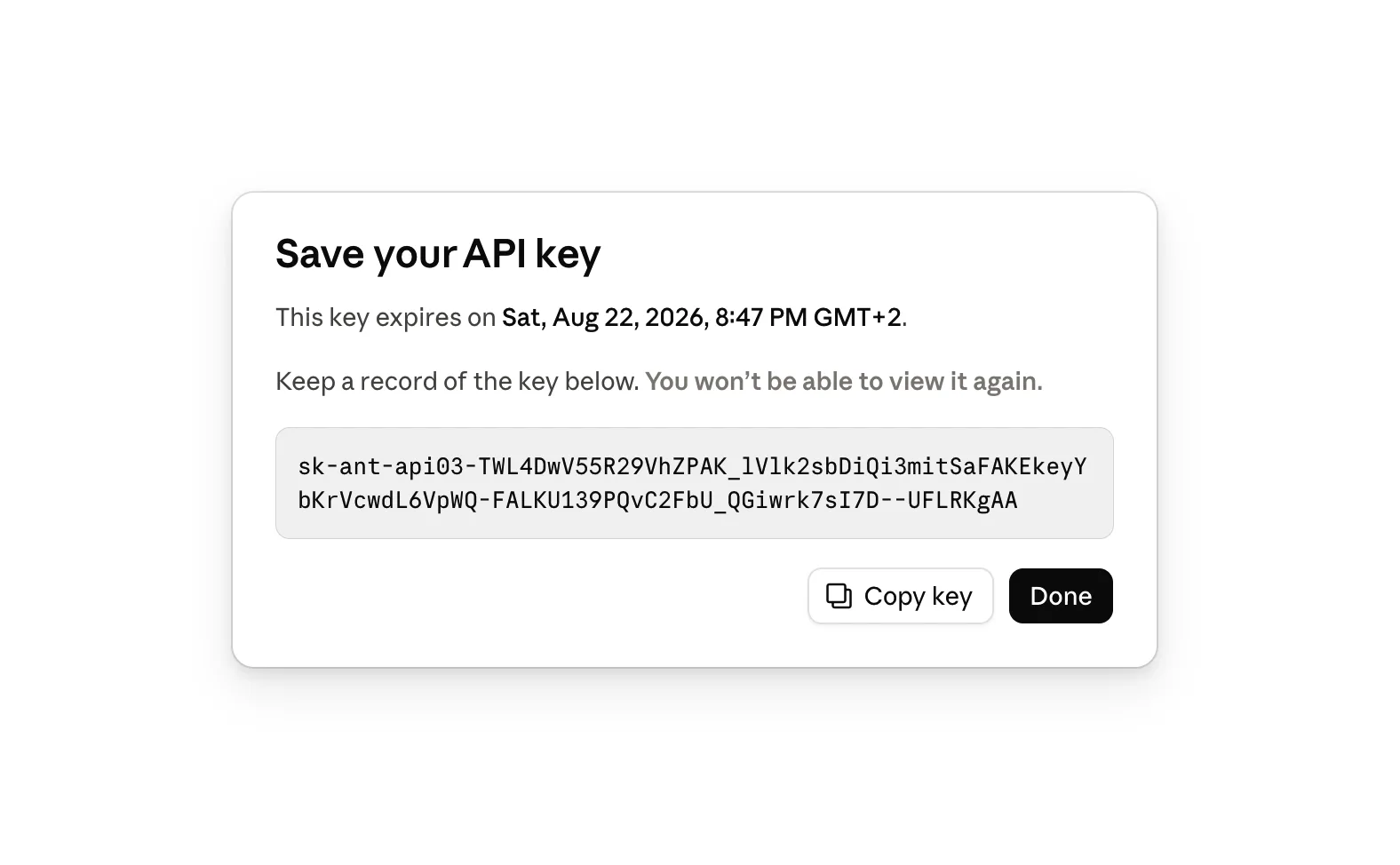
Once the key is created, copy it straight away and save it somewhere, because in most cases it will never be shown to you again. If you have not copied and saved it, you can simply disable it, delete it and create a new one.
05
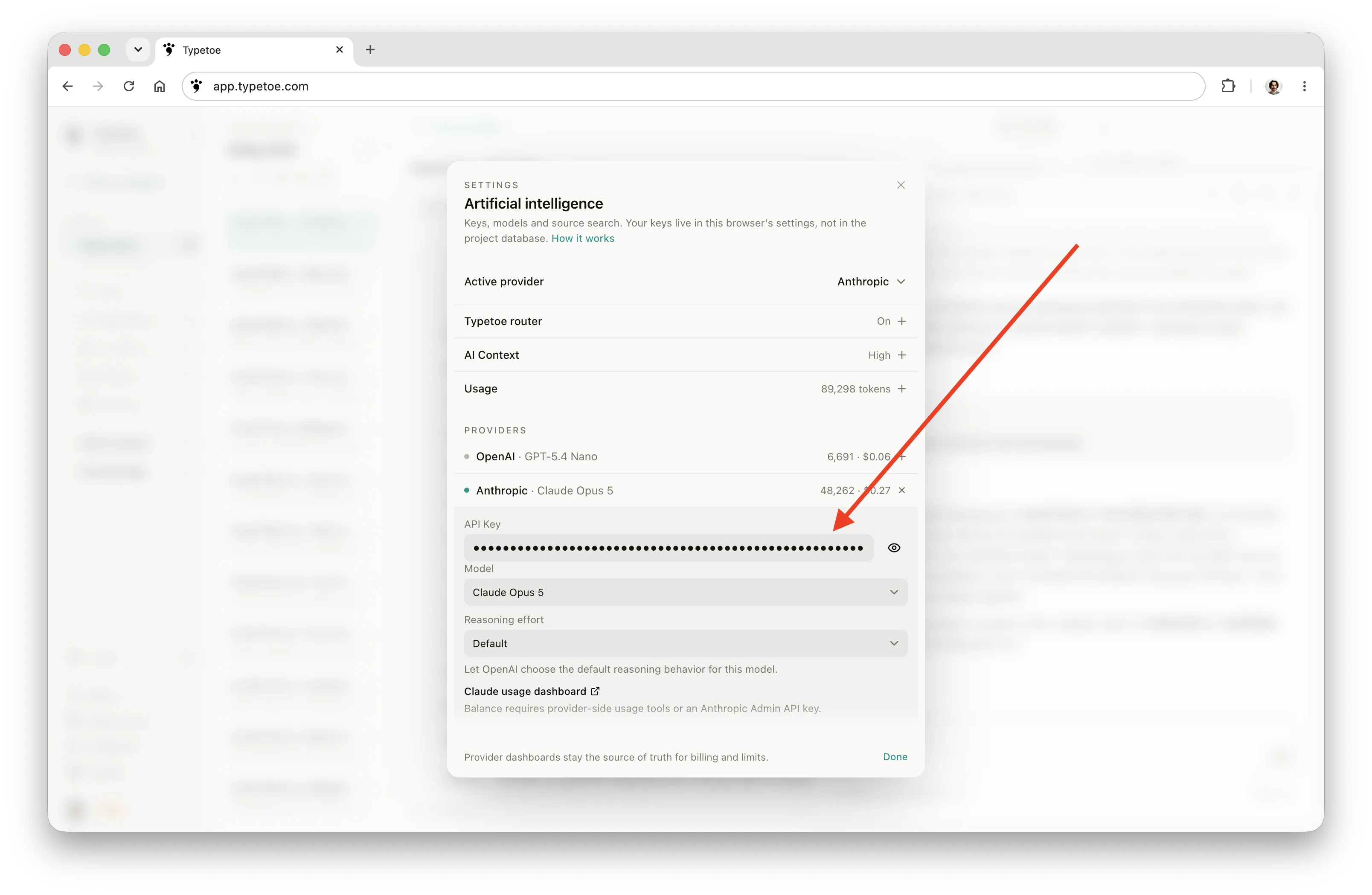
Pasting it into Typetoe
For the key to work inside Typetoe and unlock the model you chose, you have to paste it into the screen we have already seen.
06
And then you write
From here all that is left is to use whichever model you have added a key for as your assistant, and write your masterpiece.