Connect Claude to Typetoe
If you have a Claude subscription and you are used to working in it, you can work on your Typetoe manuscript from inside it. Claude reaches your project, reads the chapters, the character sheets and the locations, and follows the rules you set in the charter. It can suggest research to do and things to keep an eye on, revise your text, give you editorial judgement and propose additions. No API key is needed and there is no token counter: the costs and limits stay the ones of your Claude plan.
Video guide
Before you start
What you need
A Typetoe account with at least one project in it, and a browser. Claude’s iOS app has no section for adding a custom connector from a URL, which is what this needs, but Safari or Chrome will get you there in a few steps.
About your Claude plan: a custom connector works on the free plan too, but the free plan allows exactly one. If you are on Free and already have another one connected, remove it first — otherwise you stop at step 07 without knowing why.
Ten steps
Adding the connector
Open Claude in your browser and open the sidebar.
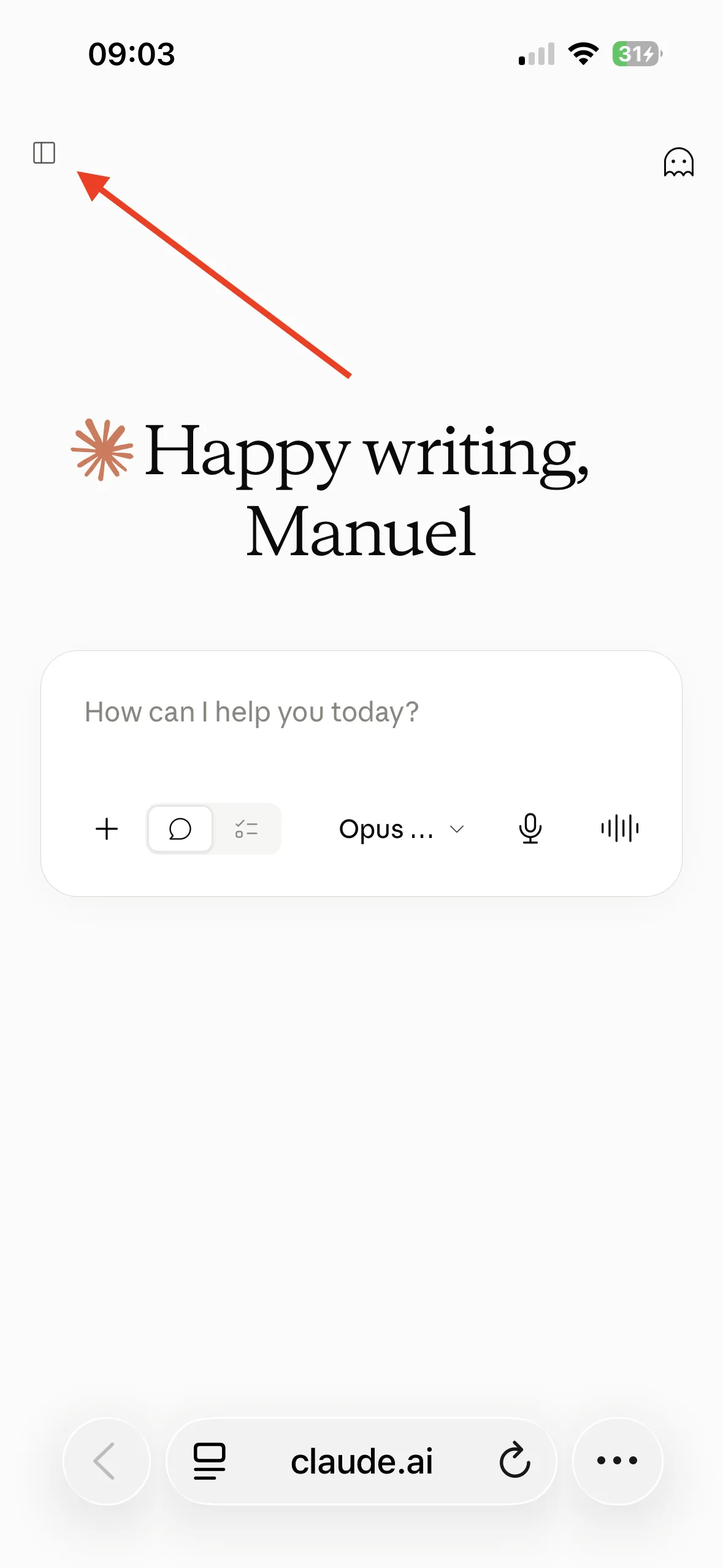
The icon that opens the sidebar, top left. Click your account icon.
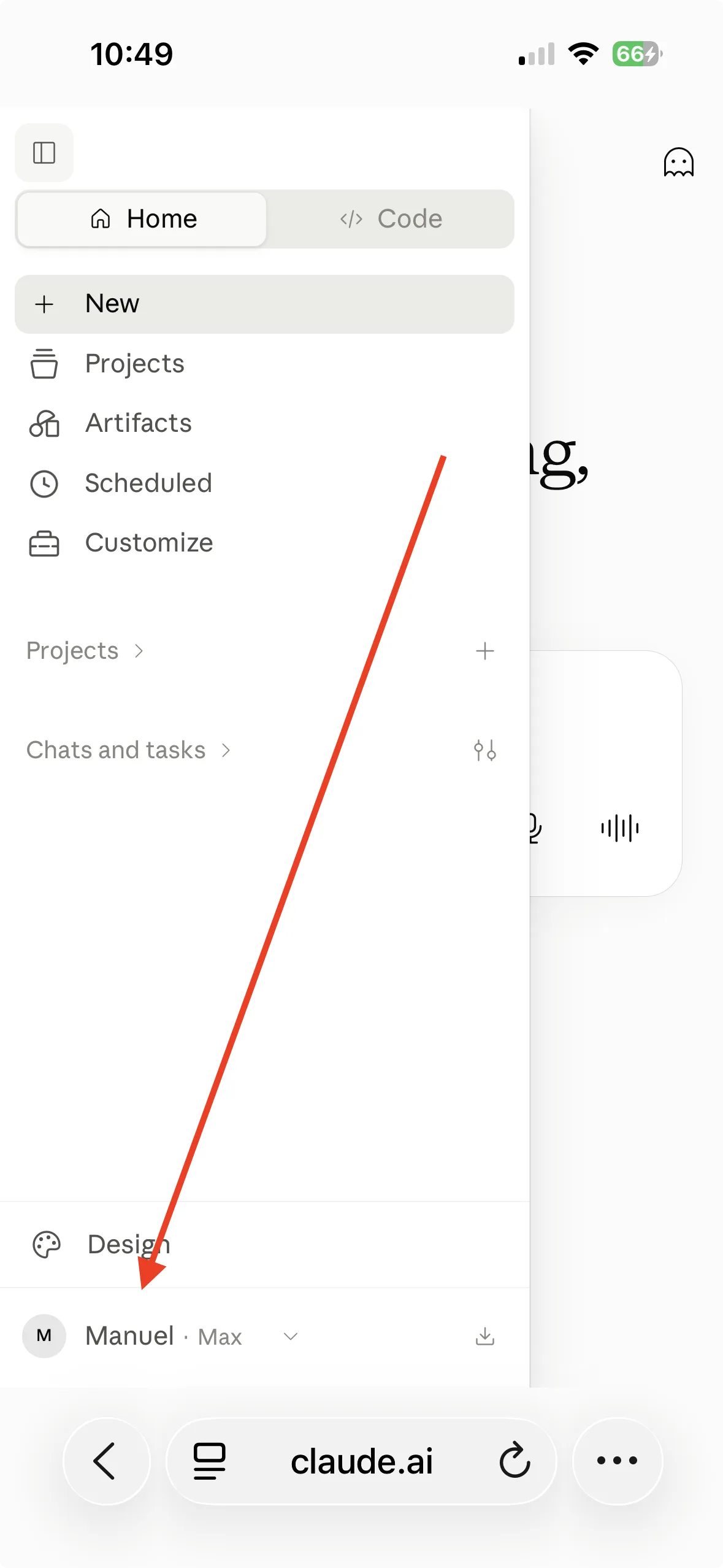
Your account, at the foot of the sidebar. Go to Settings.
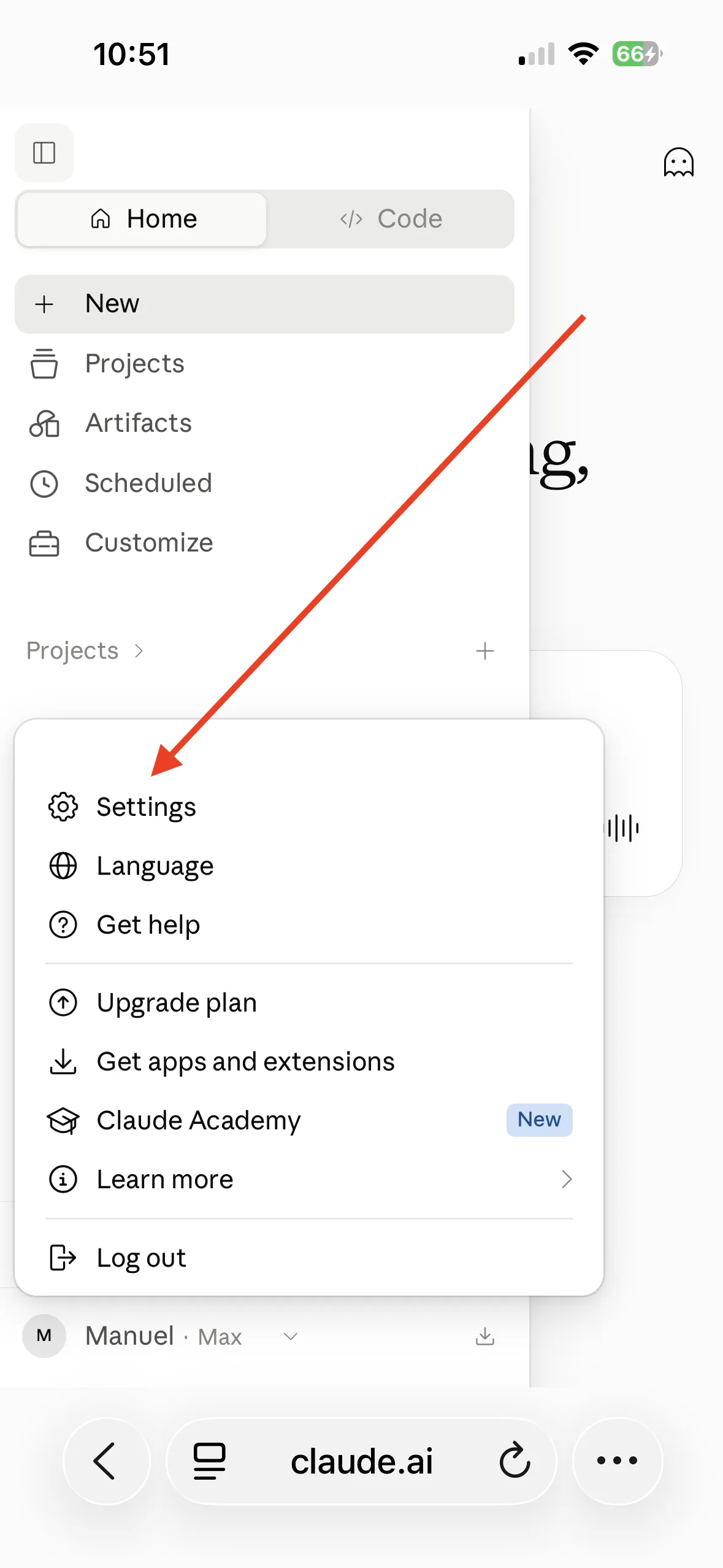
The Settings entry. Scroll to the “Connectors” tab and click “Add”. A submenu opens. Click “…Add custom connector”.
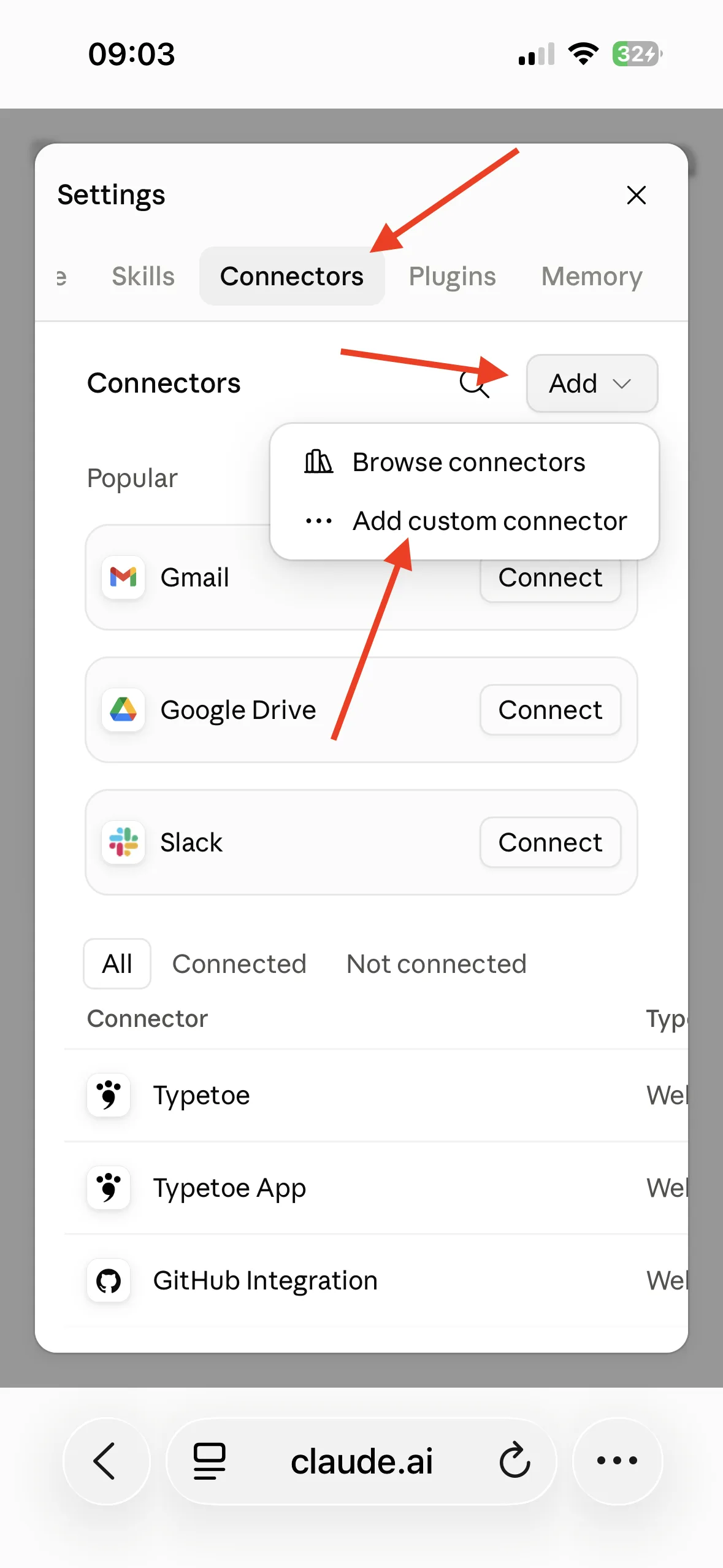
Connectors → Add → Add custom connector. On the next screen, give the connector any name you like (“Typetoe”, “Typetoe App”, whatever suits you) and the exact address Claude needs in order to reach your Typetoe account:
https://app.typetoe.com/mcp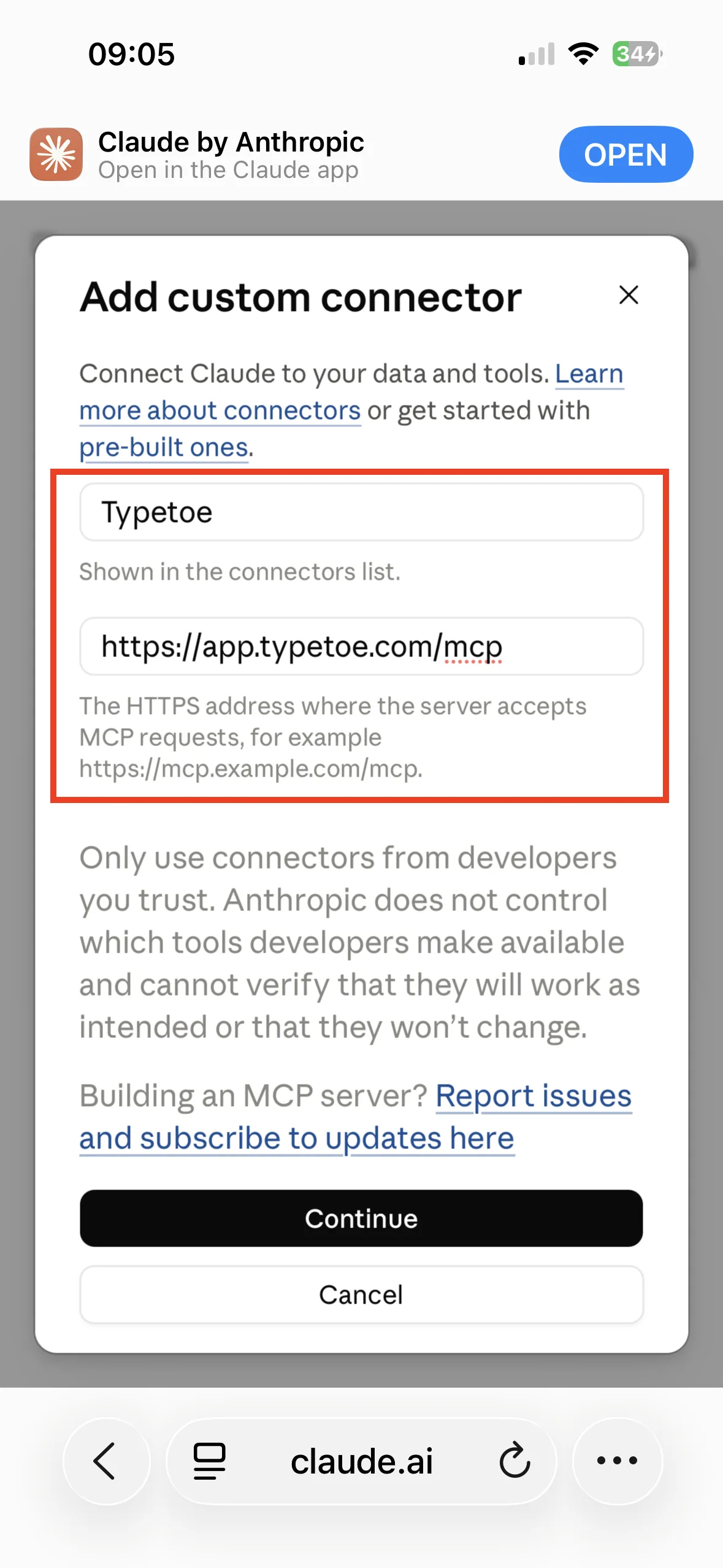
Any name you like, the exact address. The settings on the following screen are detected by Claude on its own. Leave them as they are and scroll to the bottom.
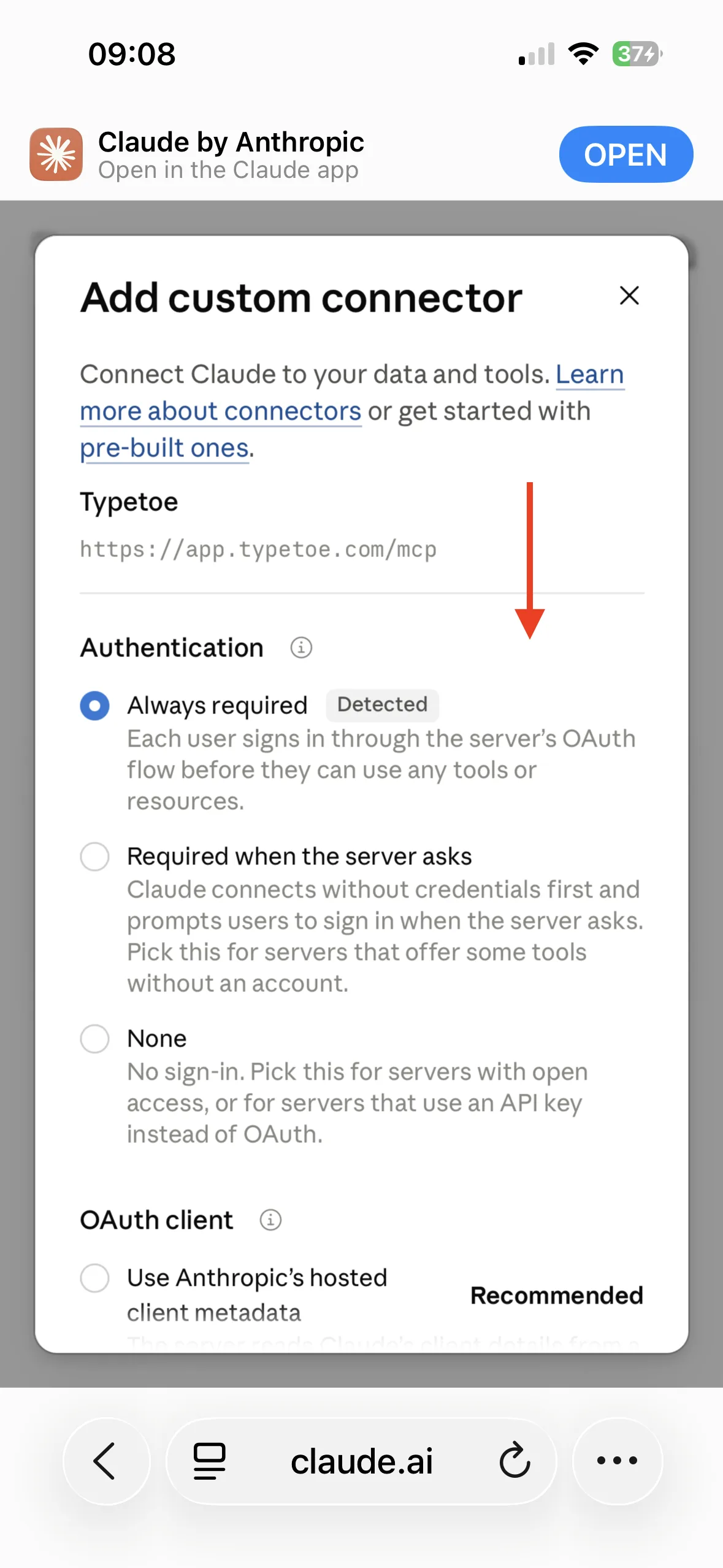
Always required is already detected: leave it alone. Click “Add” to start the connection.
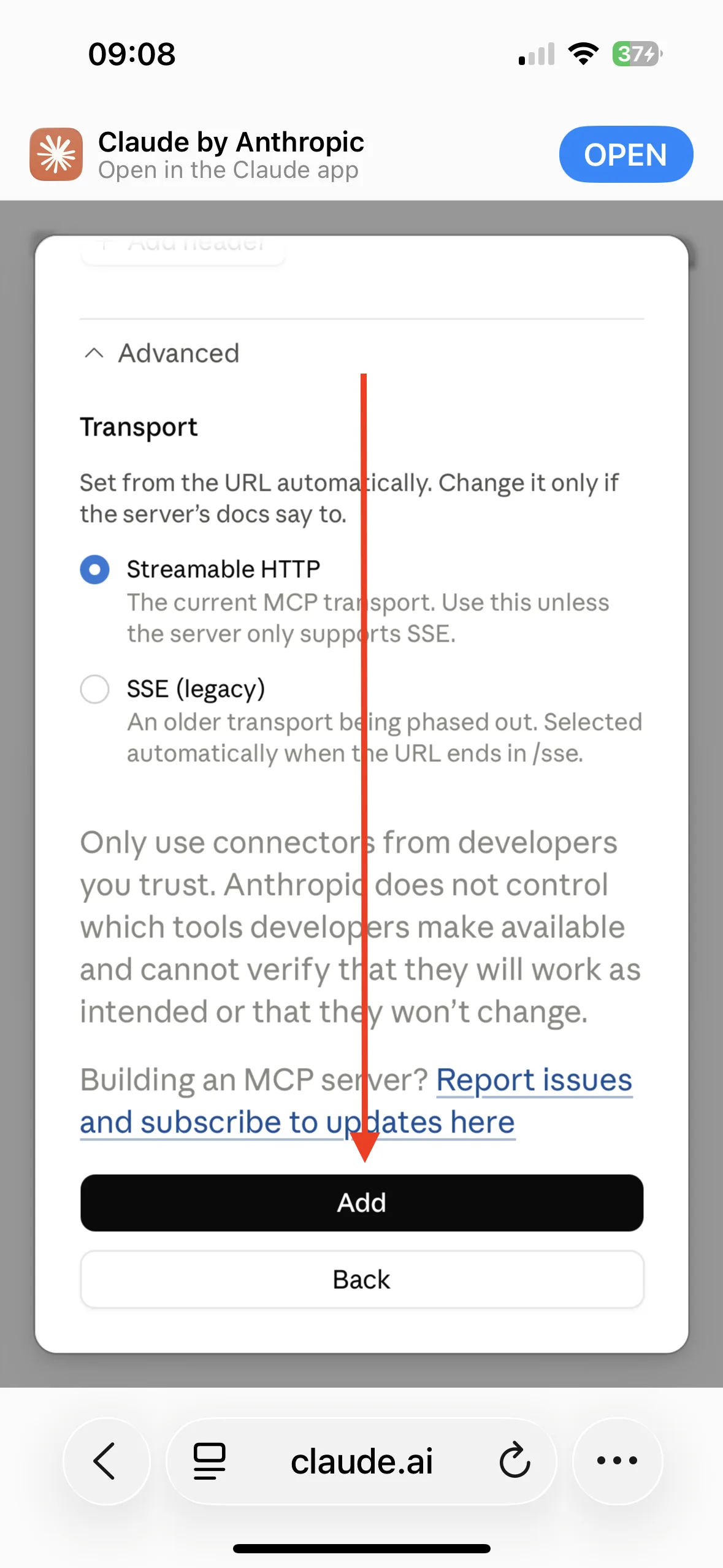
The Add button, at the foot of the form. Once it reaches the address, Claude asks you to connect to Typetoe. Click “Connect”.
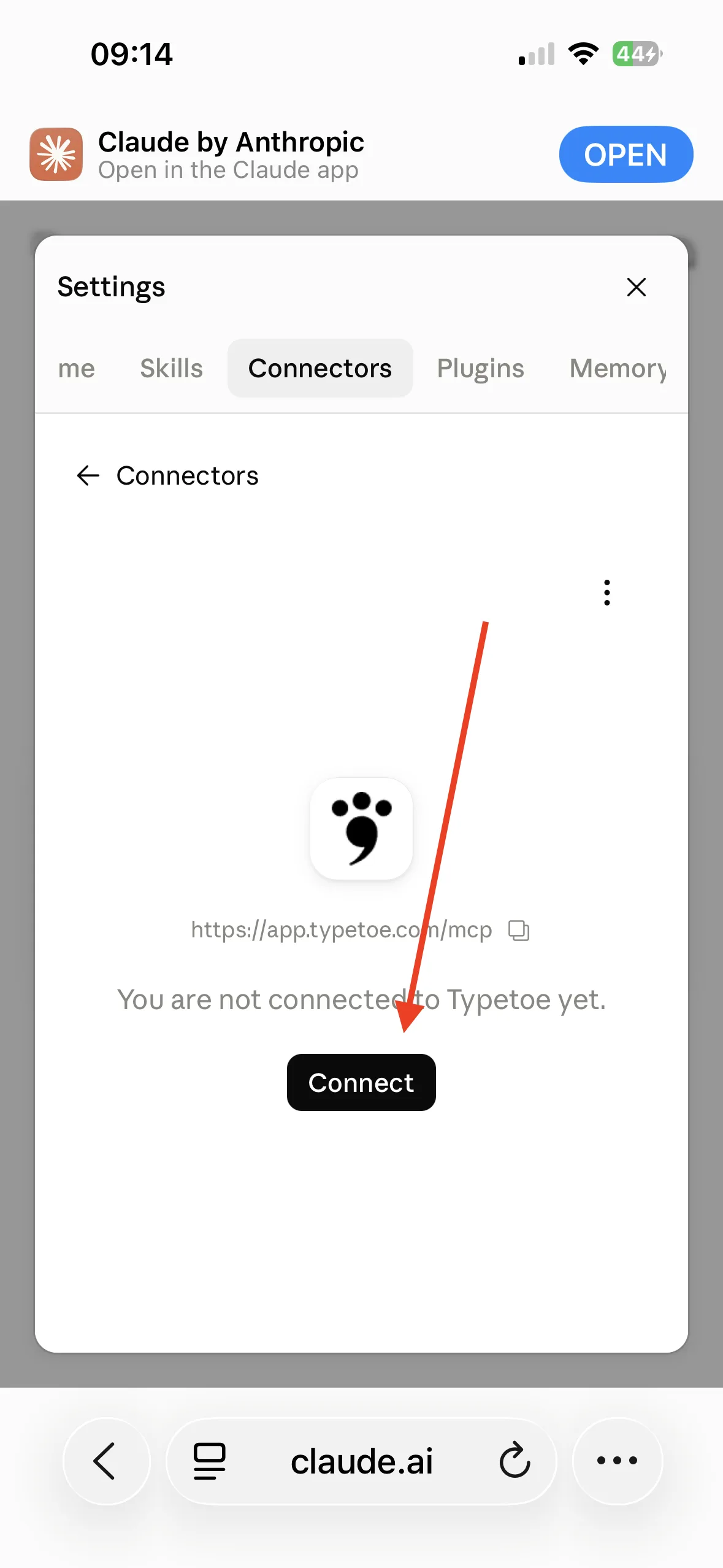
The connector exists, but is not linked yet. You are sent to the Typetoe sign-in. Sign in with your credentials.
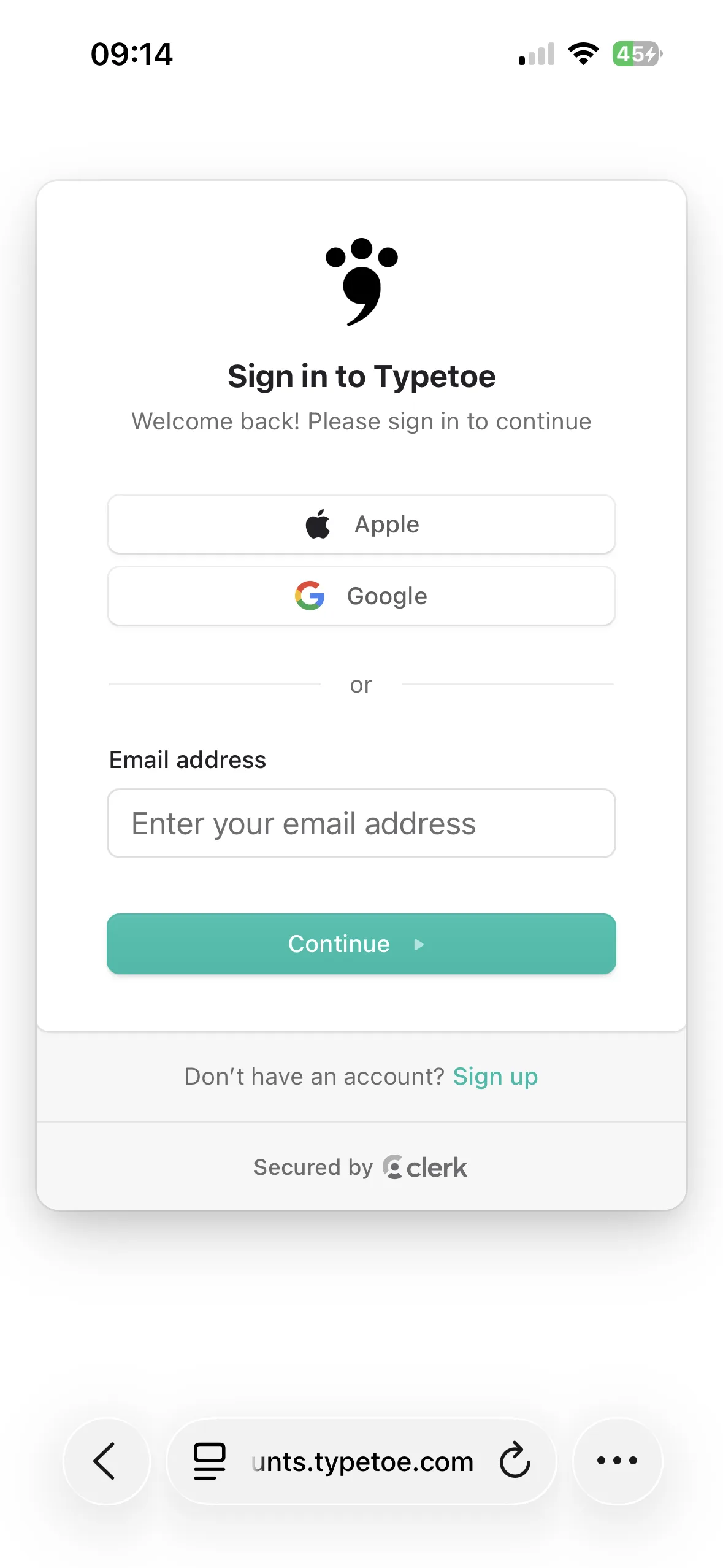
The Typetoe sign-in. Authorise Claude to reach your account.
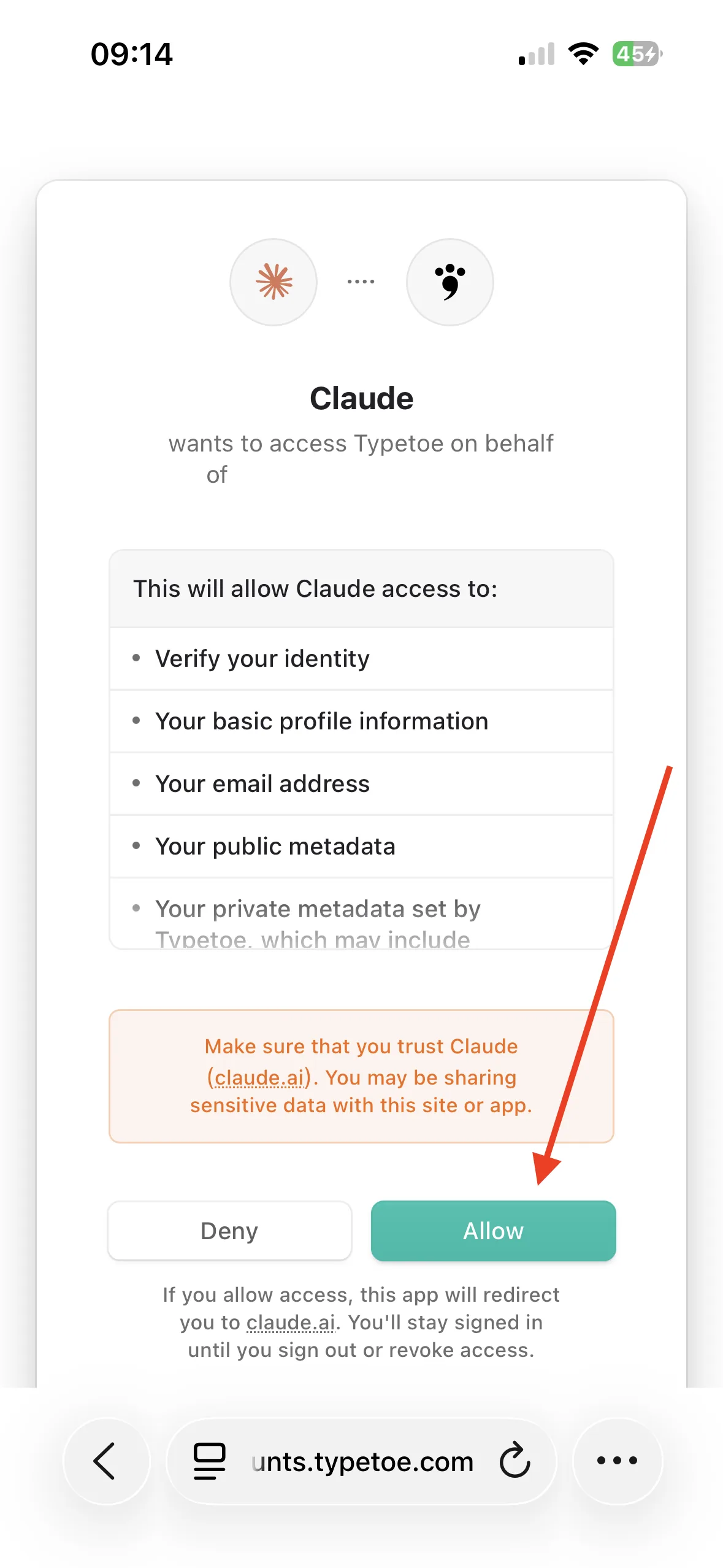
Here you see exactly what Claude will be able to reach.
If you change your mind
Disconnecting or removing
The link breaks whenever you want, and the connector comes off the list entirely. They are two different gestures: the first leaves the card in place, ready to be reconnected; the second deletes it.
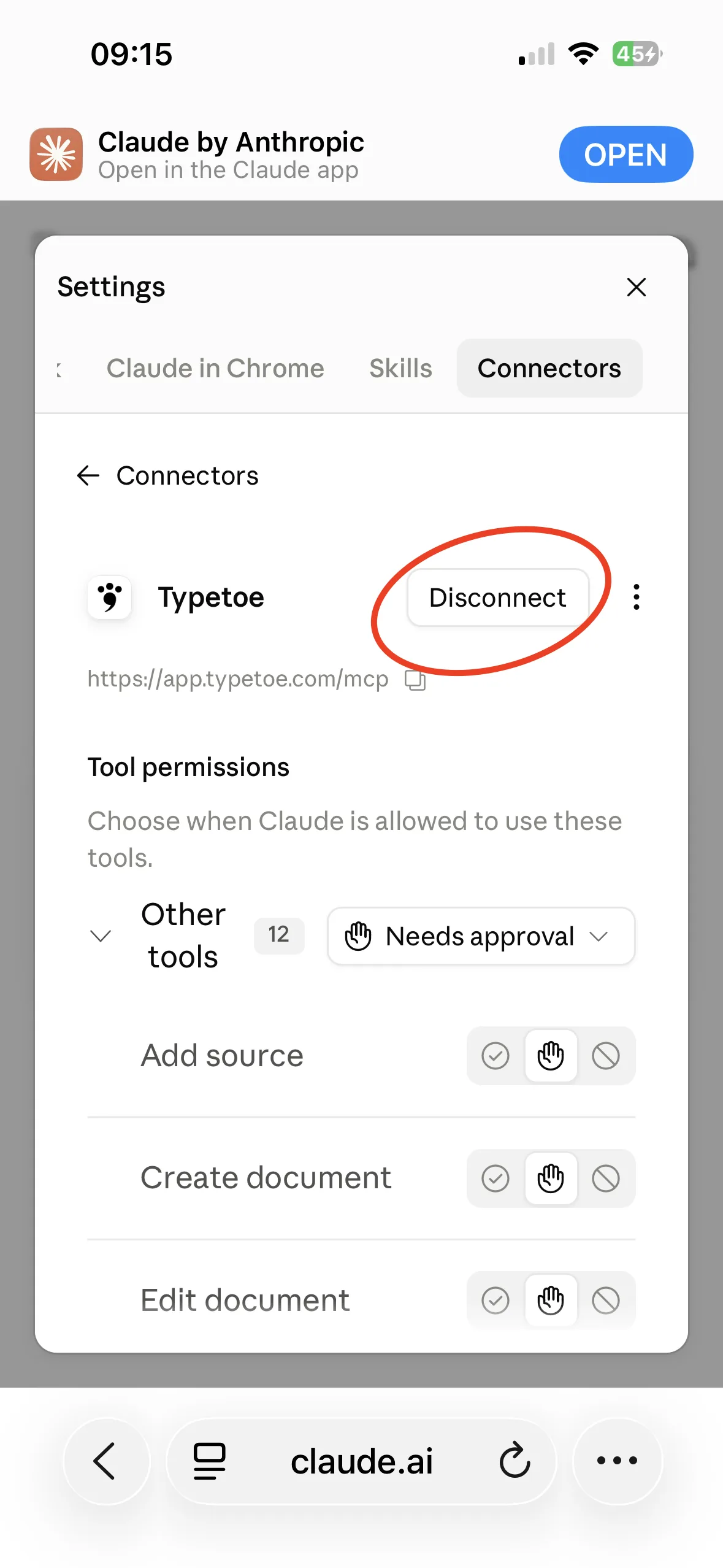
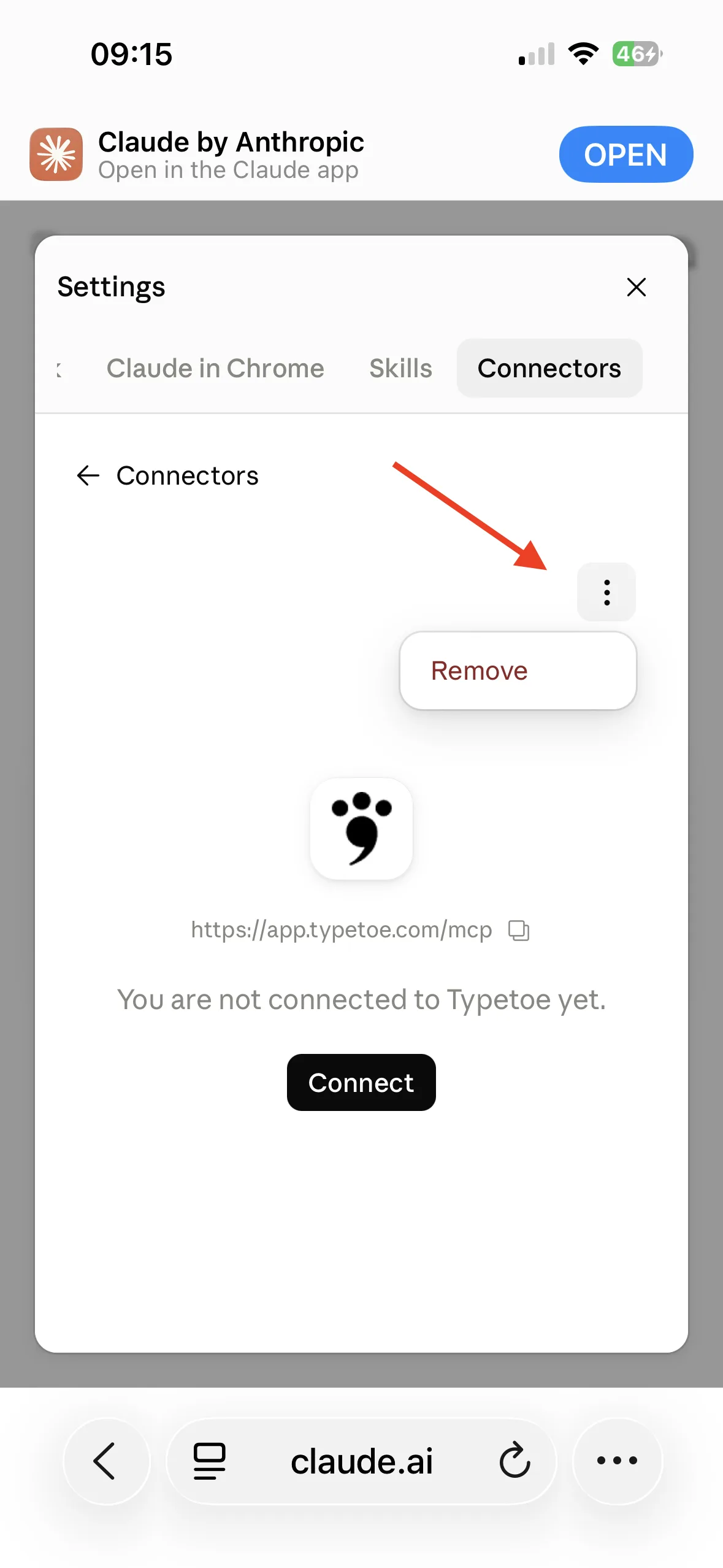
This is where it begins
The first question
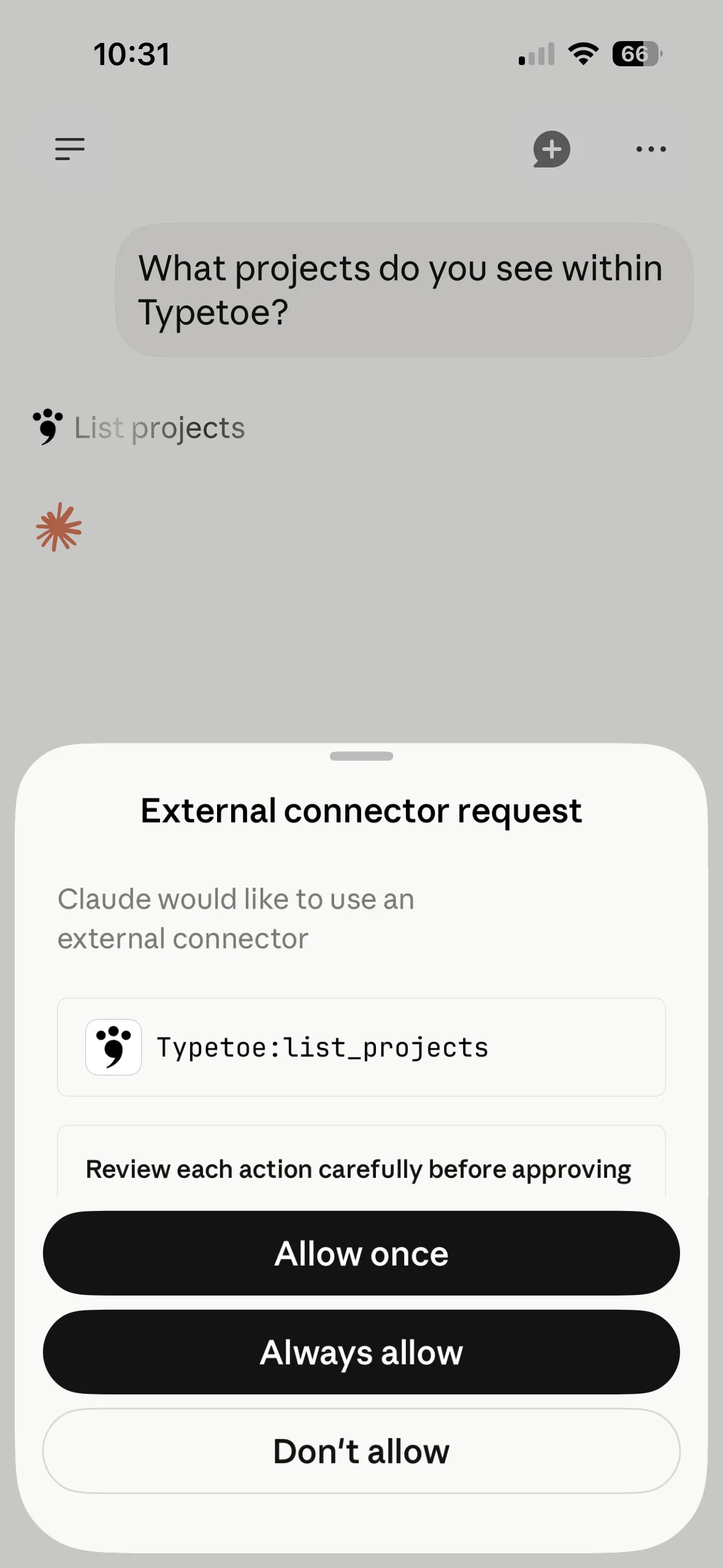
Open a new chat and ask it to reach your project. The best opening question is something like: What projects do I have on Typetoe?
Claude will ask you for permission, one tool at a time. How much you grant is up to you.
Claude is connected to your account, not to one project: inside a chat it is worth saying which project you mean.
What it is good at
Why Claude in particular
As I write, with the Opus and Fable models, it is perhaps the most solid one for literature. At reading subtext it seems to be ahead of everything else — and in a novel subtext is most of the work.
It does not hold for every use, though. Writers who do long brainstorming sessions often prefer ChatGPT, and none of these rankings stays still for long.