Verbinde Claude mit Typetoe
Wenn du ein Claude-Abo hast und ohnehin darin arbeitest, kannst du dein Typetoe-Manuskript von dort aus bearbeiten. Claude erreicht dein Projekt, liest die Kapitel, die Figurenkarten und die Orte und hält sich an die Regeln, die du im Charter gesetzt hast. Es kann dir Recherchen vorschlagen und Punkte nennen, die du im Auge behalten solltest, deinen Text überarbeiten, dir ein redaktionelles Urteil geben und Ergänzungen vorschlagen. Es braucht keinen API-Schlüssel und es gibt keinen Token-Zähler: Kosten und Grenzen bleiben die deines Claude-Tarifs.
Video-Anleitung
Bevor du anfängst
Was du brauchst
Ein Typetoe-Konto mit mindestens einem Projekt darin, und einen Browser. Die iOS-App von Claude hat keinen Bereich, um einen eigenen Connector über eine URL hinzuzufügen — genau das wird hier gebraucht — aber über Safari oder Chrome bist du in wenigen Schritten da.
Zu deinem Claude-Tarif: der eigene Connector funktioniert auch im kostenlosen Tarif, aber der erlaubt genau einen. Wenn du auf Free bist und schon einen anderen verbunden hast, entferne ihn zuerst — sonst bleibst du bei Schritt 07 stehen, ohne zu wissen warum.
Zehn Schritte
Den Connector hinzufügen
Öffne Claude im Browser und öffne die Seitenleiste.
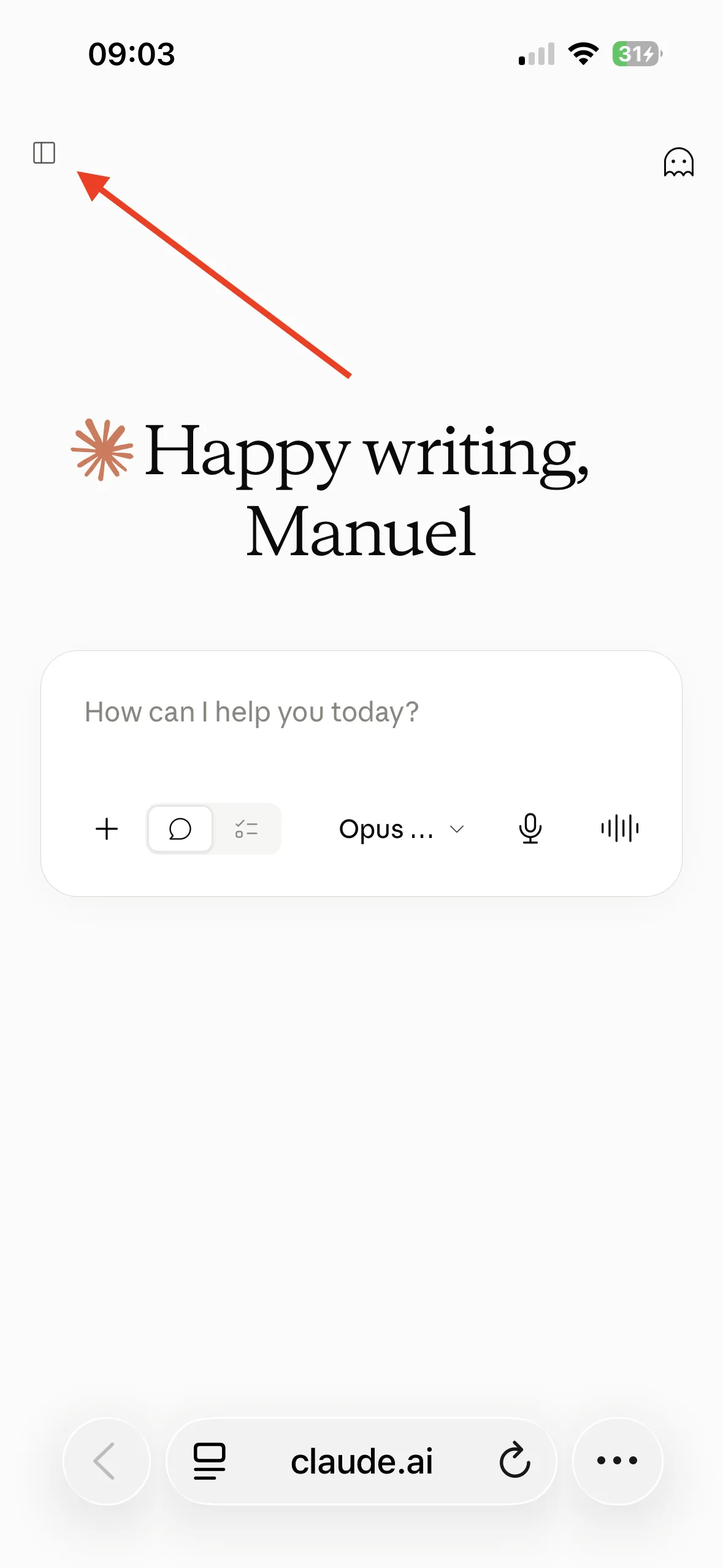
Das Symbol für die Seitenleiste, oben links. Klicke auf das Symbol deines Kontos.
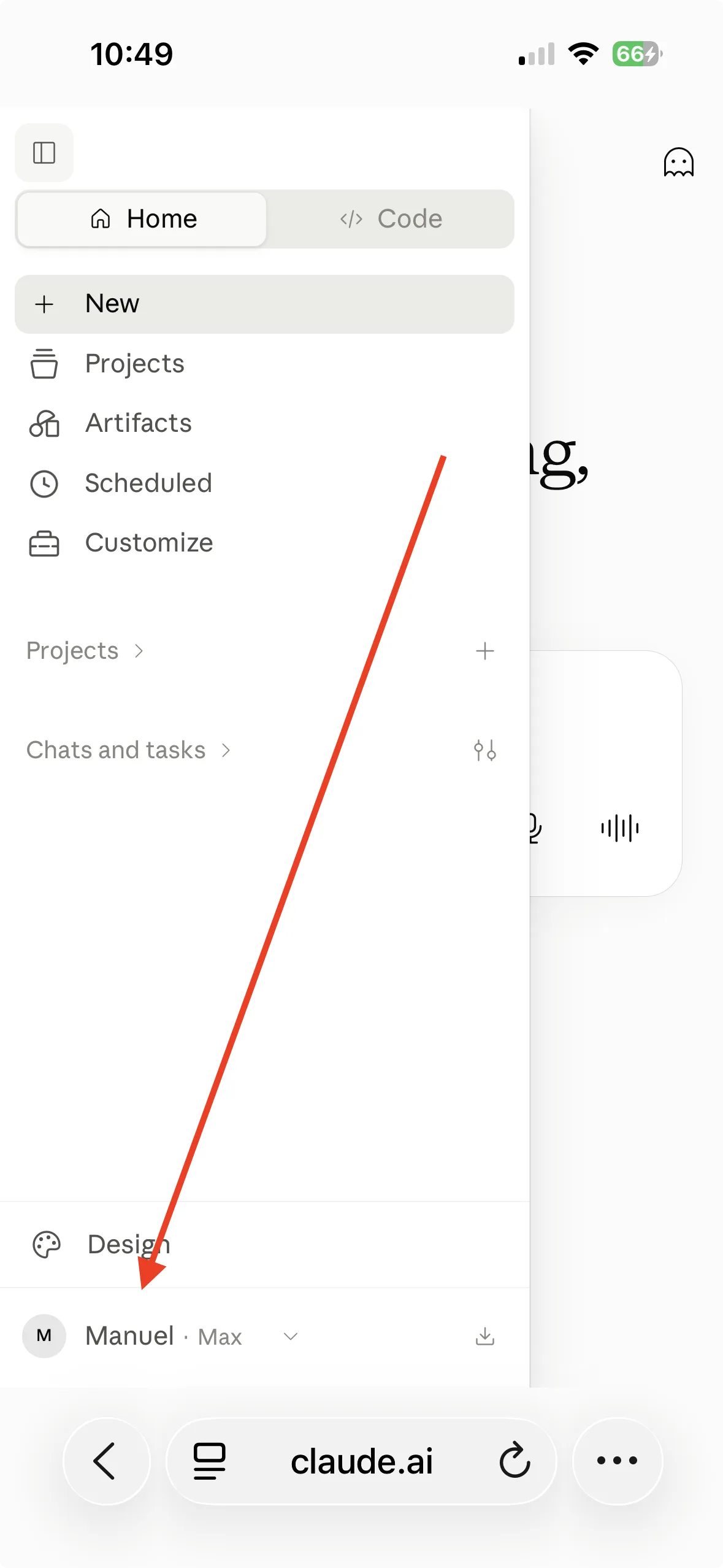
Dein Konto, am Fuß der Seitenleiste. Geh zu Settings.
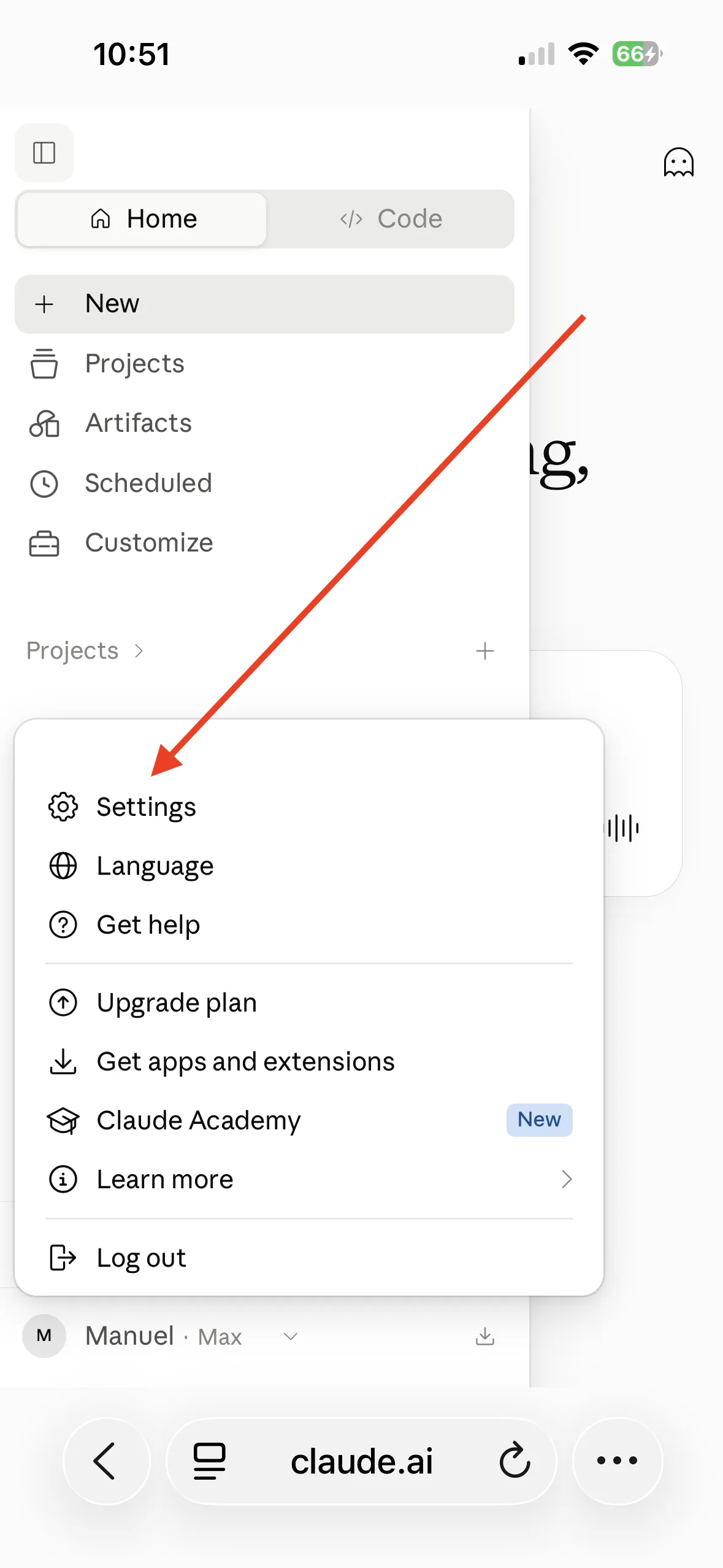
Der Eintrag Settings. Scrolle zum Reiter „Connectors“ und klicke auf „Add“. Ein Untermenü geht auf. Klicke auf „…Add custom connector“.
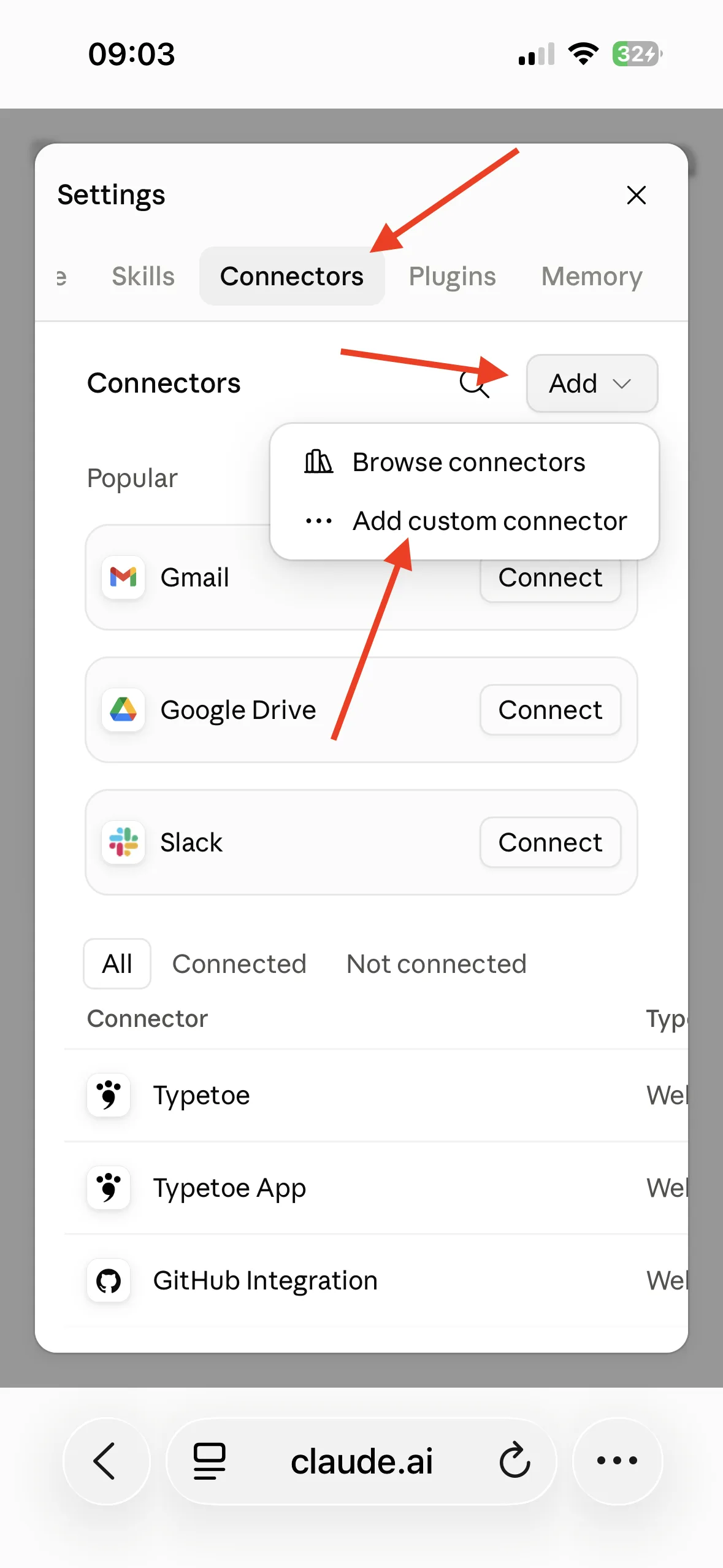
Connectors → Add → Add custom connector. Gib dem Connector auf dem nächsten Bildschirm einen Namen deiner Wahl („Typetoe“, „Typetoe App“, was dir passt) und die genaue Adresse, über die Claude dein Typetoe-Konto erreicht:
https://app.typetoe.com/mcp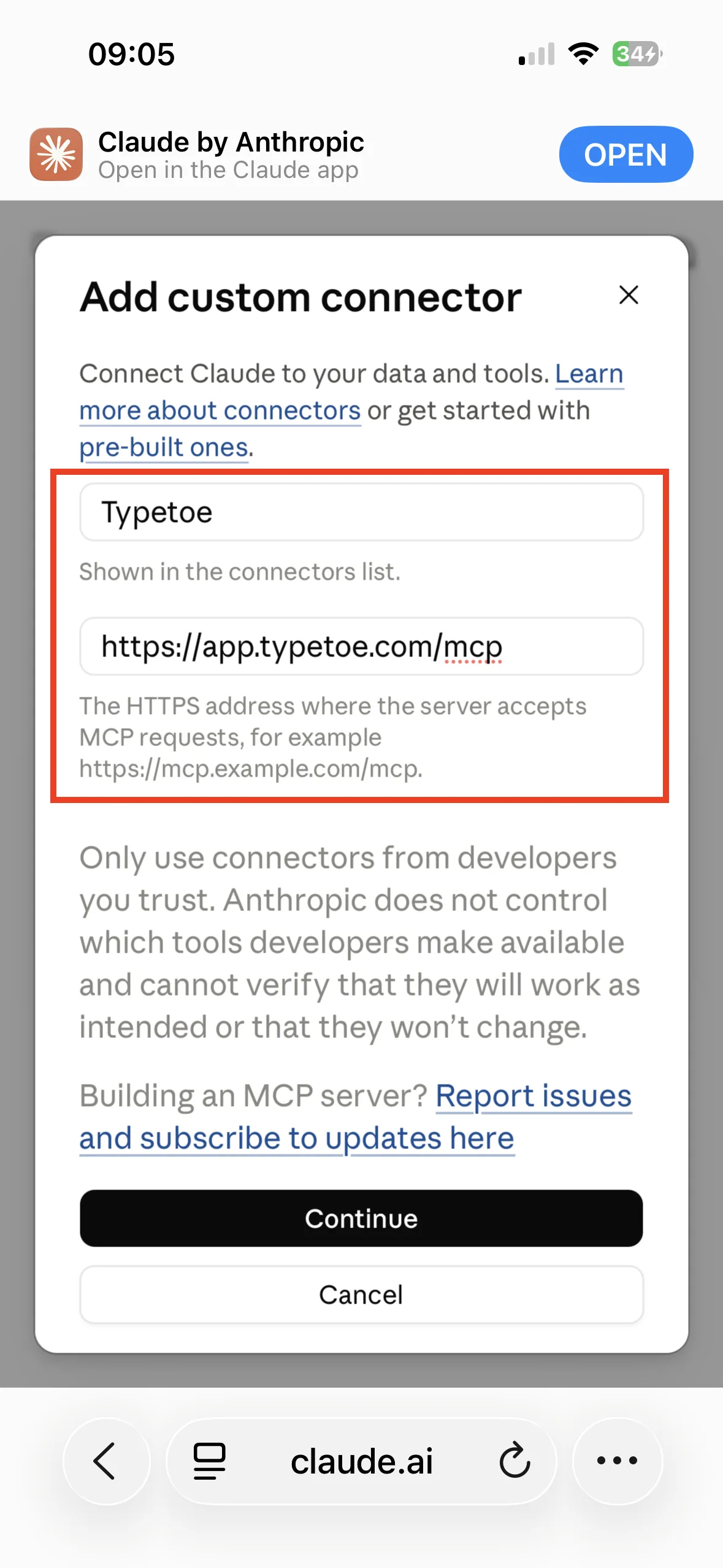
Ein beliebiger Name, die genaue Adresse. Die Einstellungen auf dem folgenden Bildschirm erkennt Claude von selbst. Lass sie, wie sie sind, und scrolle ganz nach unten.
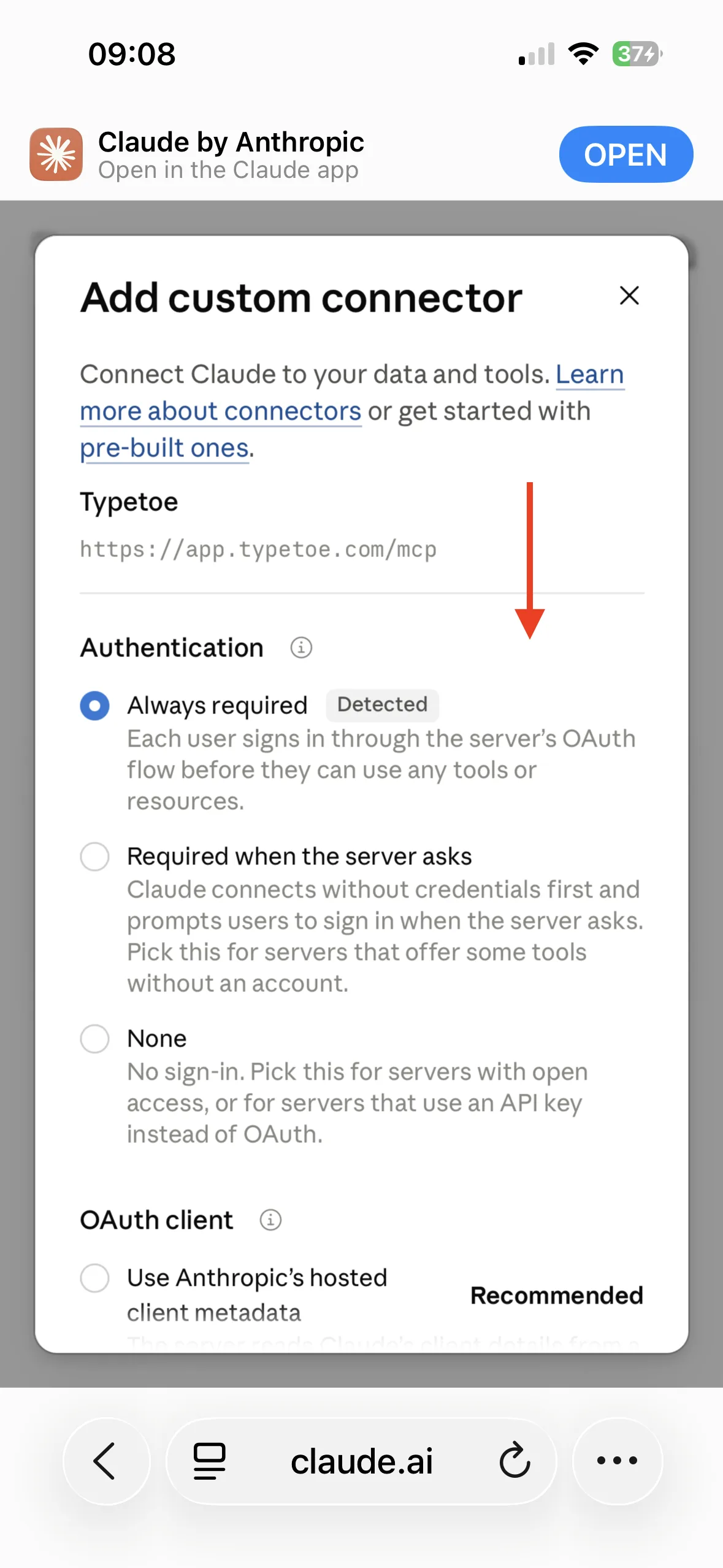
Always required ist schon erkannt: nicht anfassen. Klicke auf „Add“, um die Verbindung zu starten.
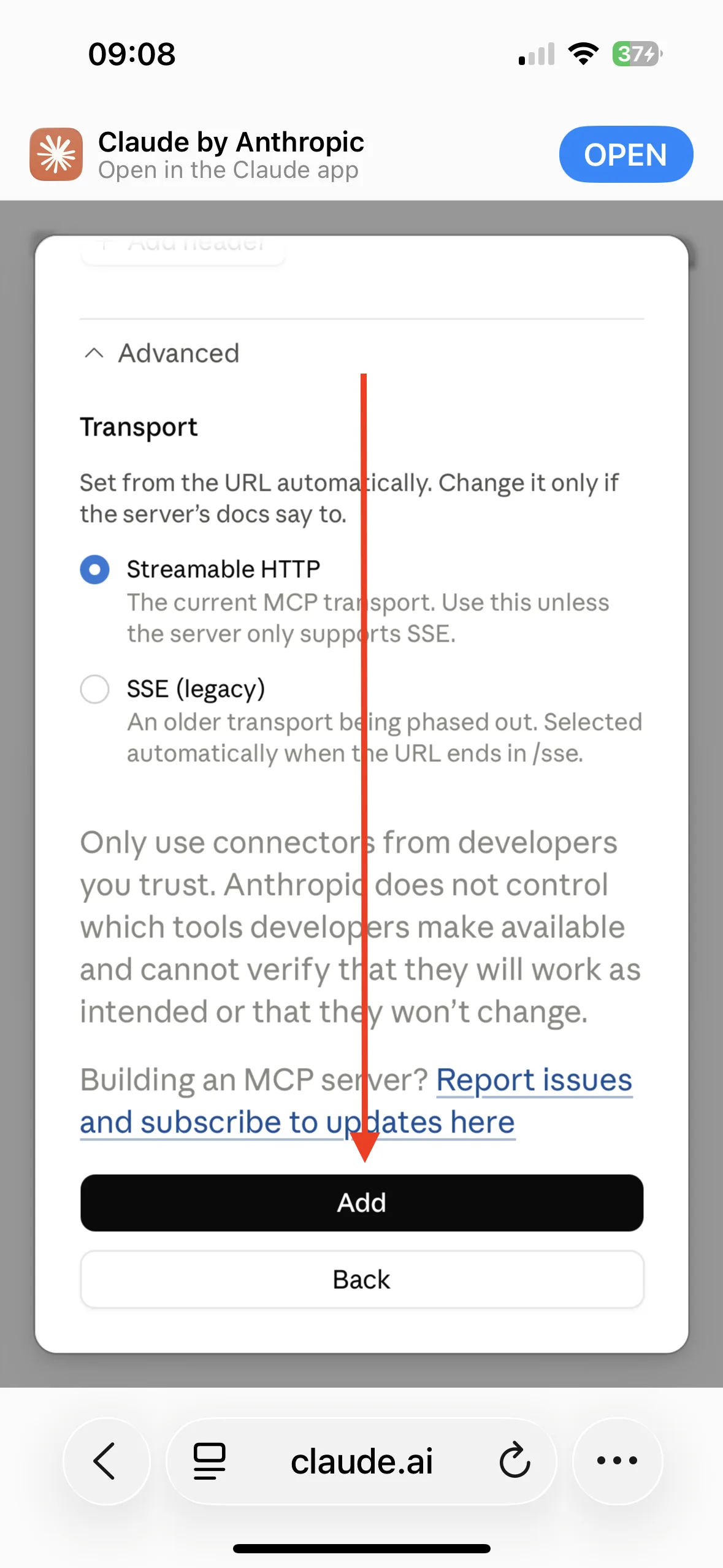
Die Schaltfläche Add, am Fuß des Formulars. Sobald die Adresse erreicht ist, bittet Claude dich, dich mit Typetoe zu verbinden. Klicke auf „Connect“.
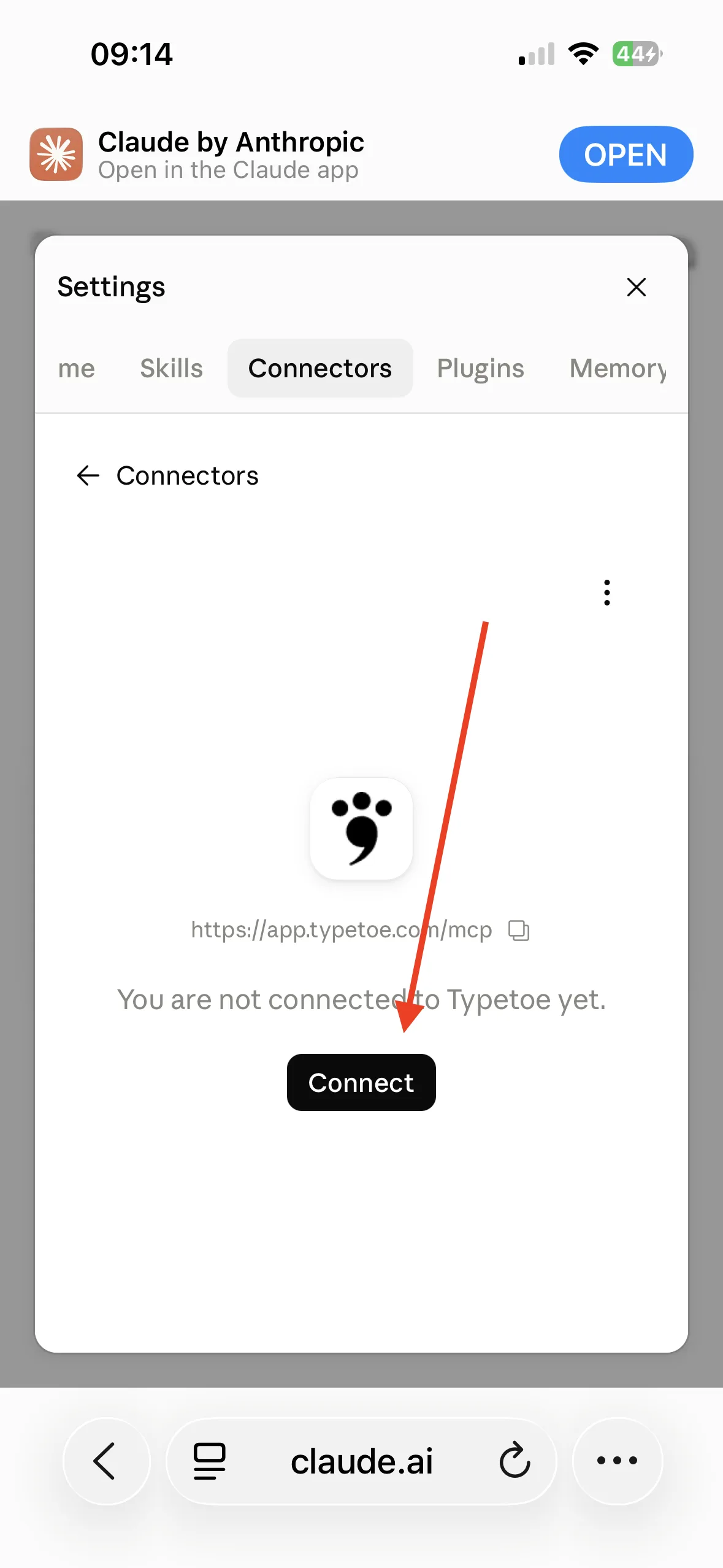
Der Connector existiert, ist aber noch nicht verbunden. Du wirst zur Typetoe-Anmeldung weitergeleitet. Melde dich mit deinen Zugangsdaten an.
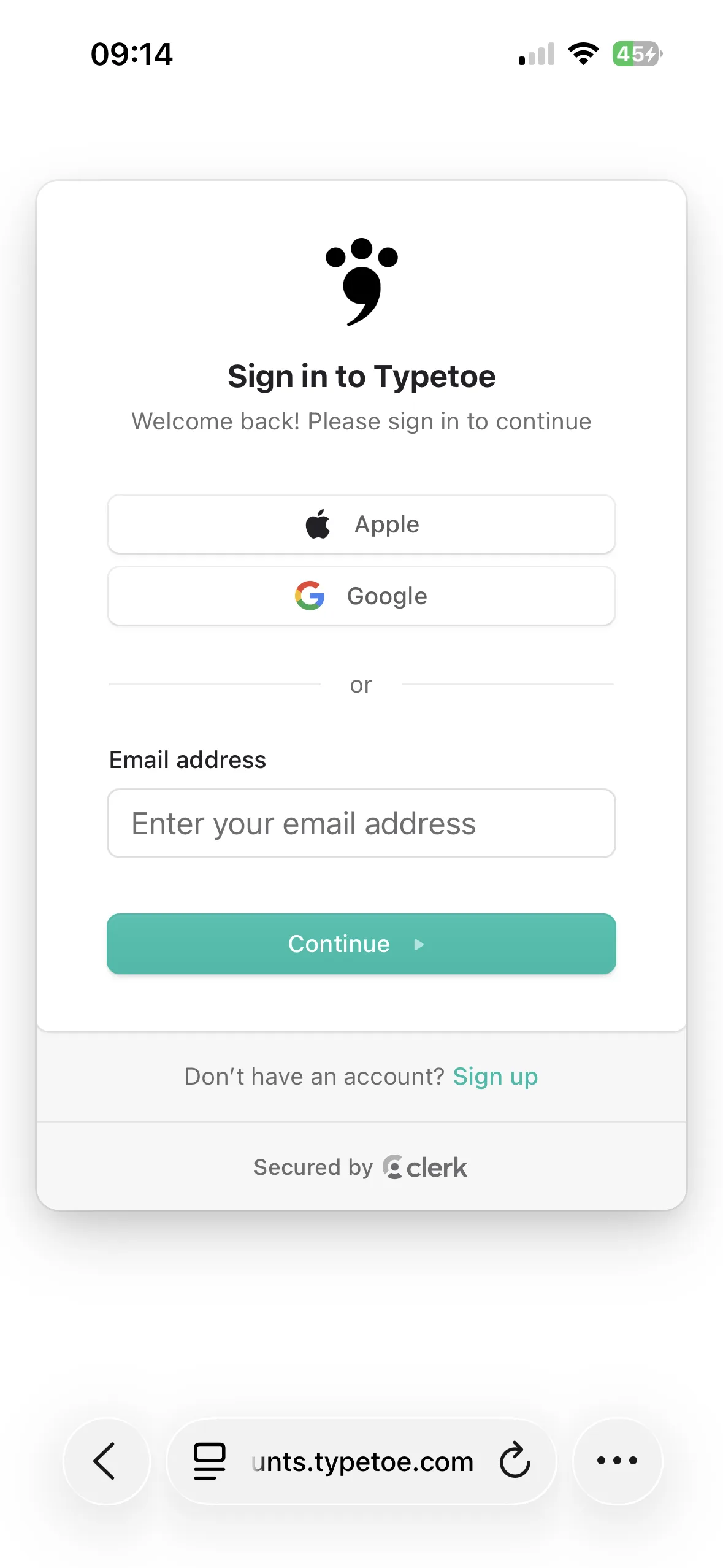
Die Typetoe-Anmeldung. Erlaube Claude den Zugriff auf dein Konto.
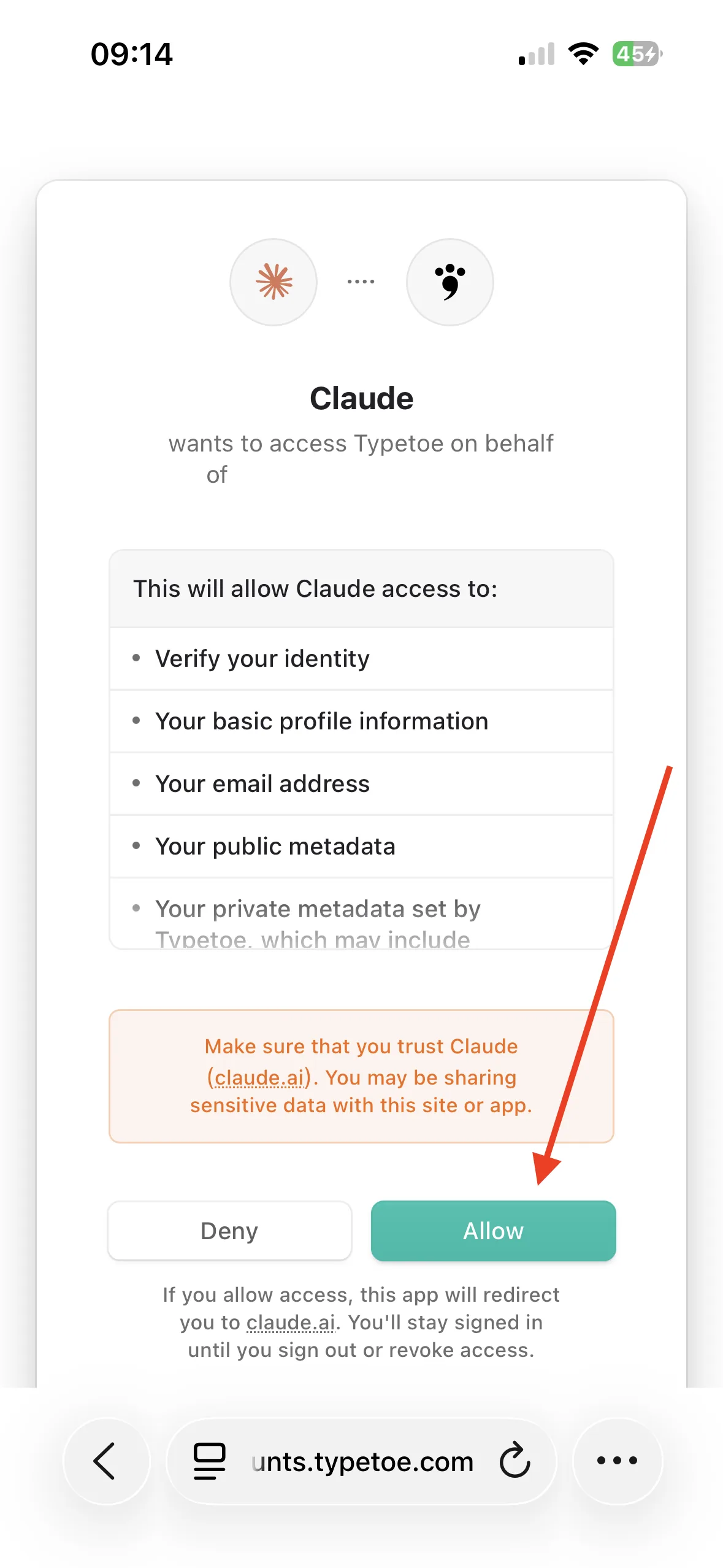
Hier siehst du genau, worauf Claude zugreifen kann.
Falls du es dir anders überlegst
Trennen oder entfernen
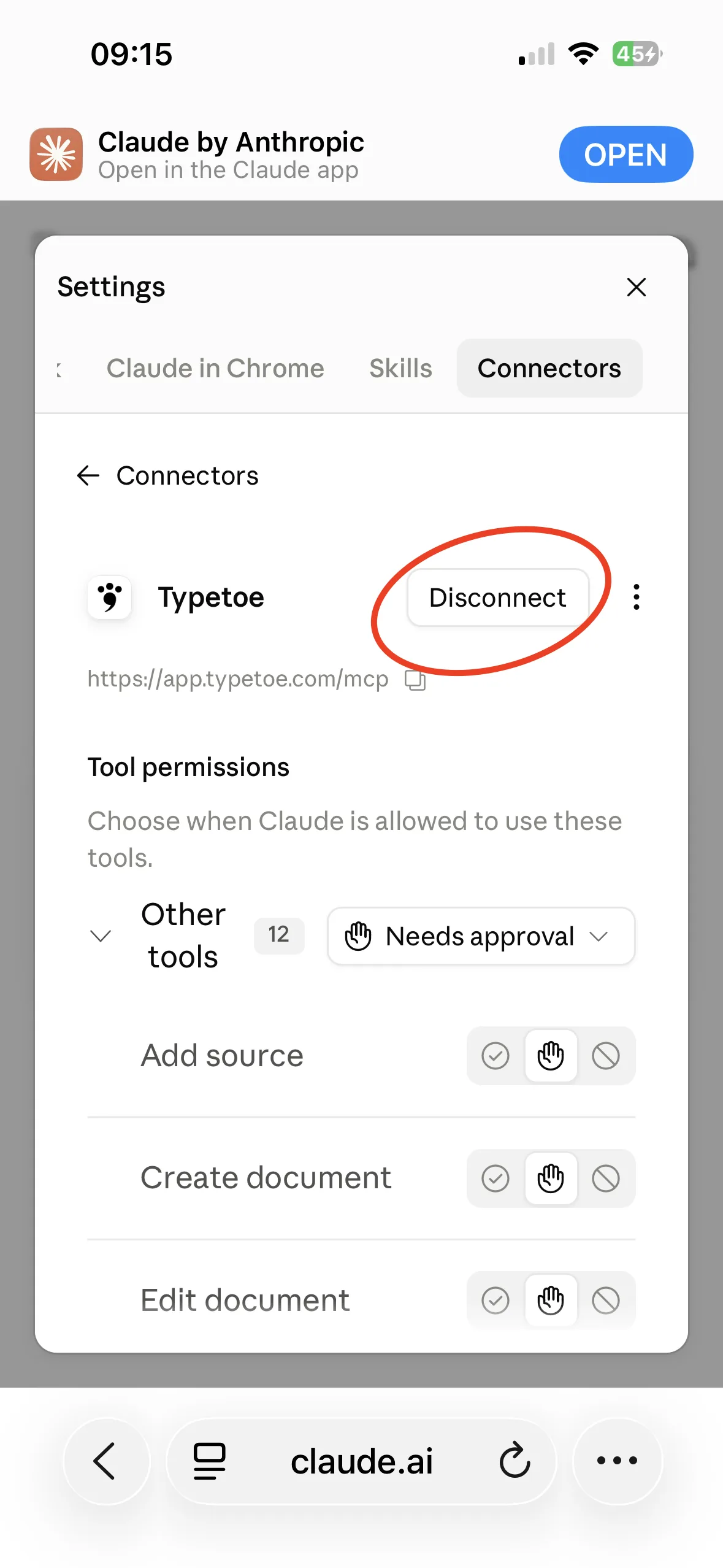
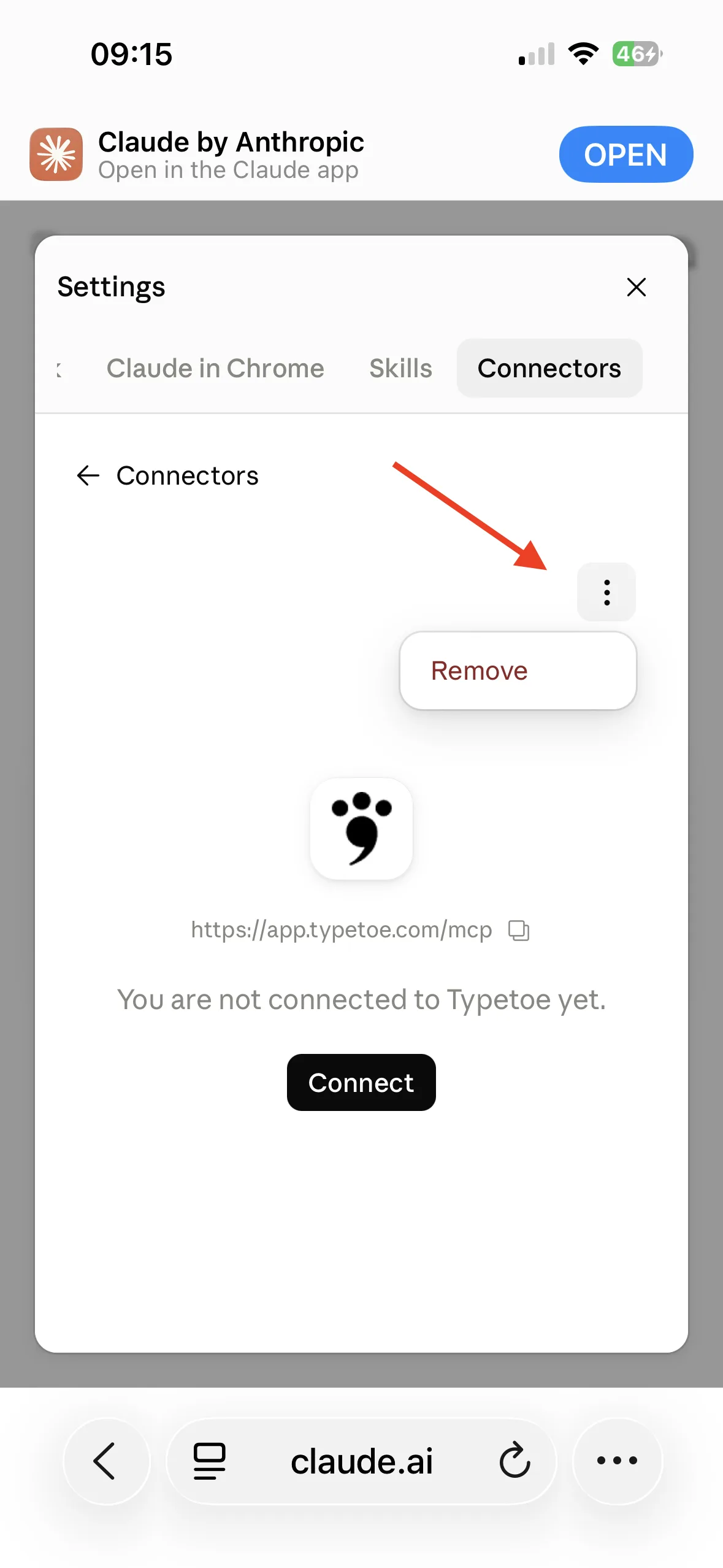
Die Verbindung lässt sich jederzeit lösen, und der Connector verschwindet ganz aus der Liste. Das sind zwei verschiedene Handgriffe: der erste lässt die Karte stehen, bereit für eine neue Verbindung; der zweite löscht sie.
Hier fängt es an
Die erste Frage
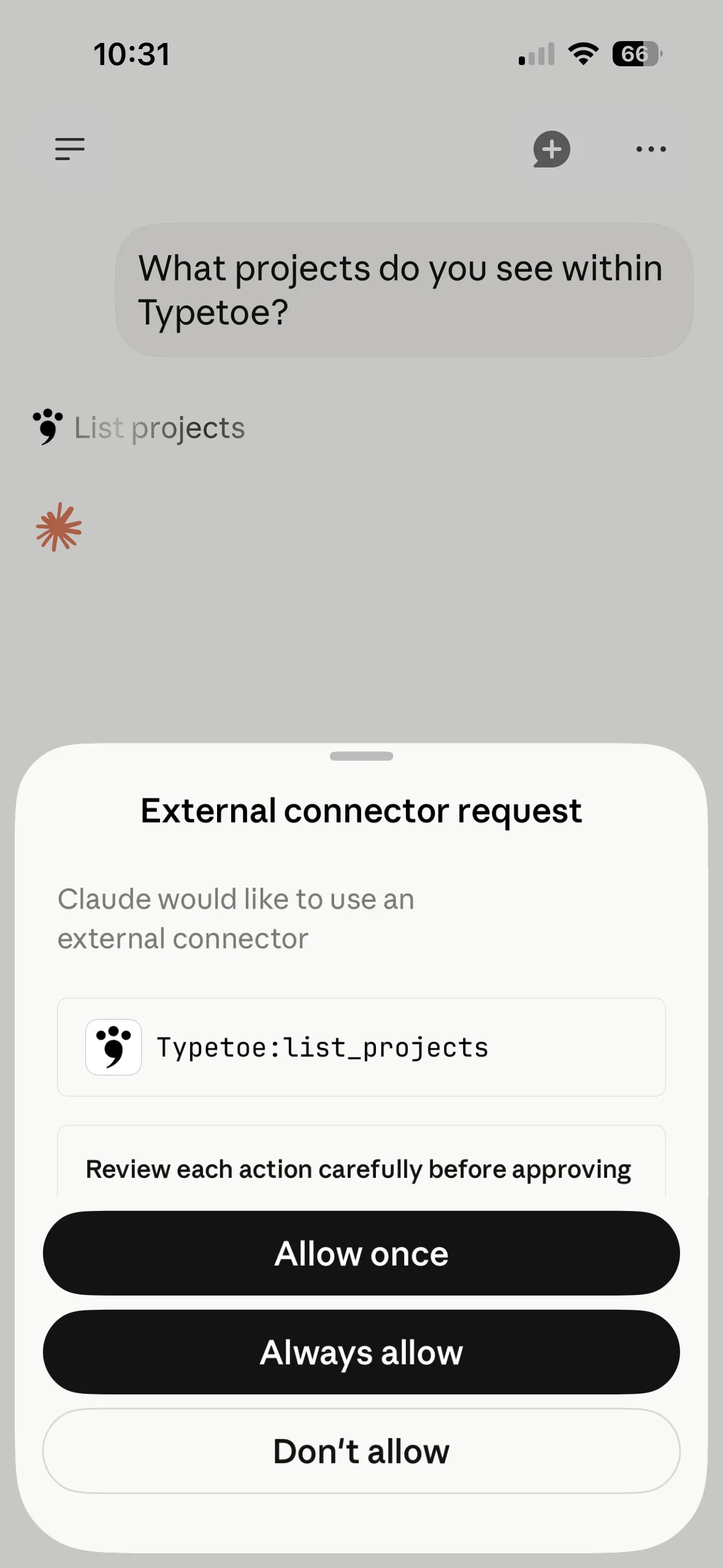
Öffne einen neuen Chat und bitte darum, auf dein Projekt zuzugreifen. Die beste Frage zum Anfangen ist etwa: Welche Projekte habe ich auf Typetoe?
Claude fragt dich um Erlaubnis, Werkzeug für Werkzeug. Wie viel du gibst, entscheidest du.
Claude ist mit deinem Konto verbunden, nicht mit einem bestimmten Projekt: im Chat sagst du am besten gleich, welches Projekt du meinst.
Was es gut kann
Warum gerade Claude
Während ich das schreibe, mit den Modellen Opus und Fable, ist es für Literatur vielleicht das solideste. Beim Lesen des Subtexts scheint es der Konkurrenz voraus — und in einem Roman ist der Subtext fast die ganze Arbeit.
Für jeden Zweck gilt das aber nicht. Wer lange Brainstormings macht, bevorzugt oft ChatGPT, und keine dieser Ranglisten bleibt lange stehen.